Construction Company Stock & Site Inventory Management System
Tailored for building contractors, civil engineering companies, and multi-site developers in Sri Lanka. This enterprise ERP platform unifies Central Store warehousing, on-site material requests, inter-site logistics transfers, multi-level Quantity Surveyor (QS) & Director approvals, BOQ estimate vs actual tracking, tools asset control, and procurement into a single, high-security dashboard.
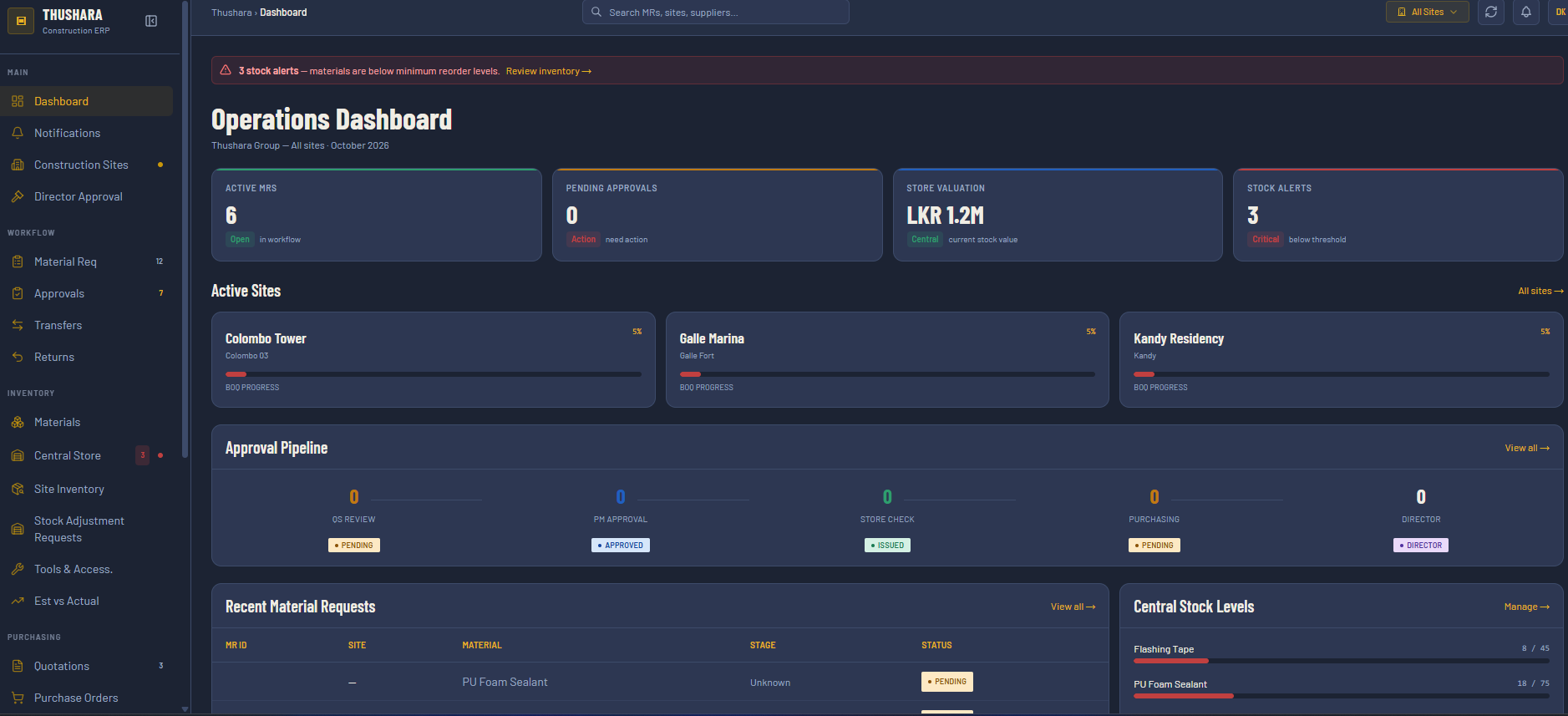
Operations Dashboard & Real-Time Operational KPI Overview
The Operations Dashboard gives a quick overview of the company’s construction operations. It shows active material requests, pending approvals, stock value, stock alerts, site progress, and purchase spending. Users can also check recent material requests, central stock levels, and recent activities. This helps managers easily monitor projects, materials, approvals, and costs from one place.
- ⚡ Executive KPI Cards: Instant metrics for active material requests, pending approvals, central store valuation (LKR 1.2M), and critical stock warnings
- ⚡ Multi-Site Progress Bars: Real-time completion progress tracking for Colombo Tower, Galle Marina, and Kandy Residency projects
- ⚡ Approval Pipeline & Live Stock: Live monitoring of approval stages (QS Review, PM Approval, Store Check, Purchasing, Director) alongside central inventory levels
Central Notifications & Approval Action Alerts
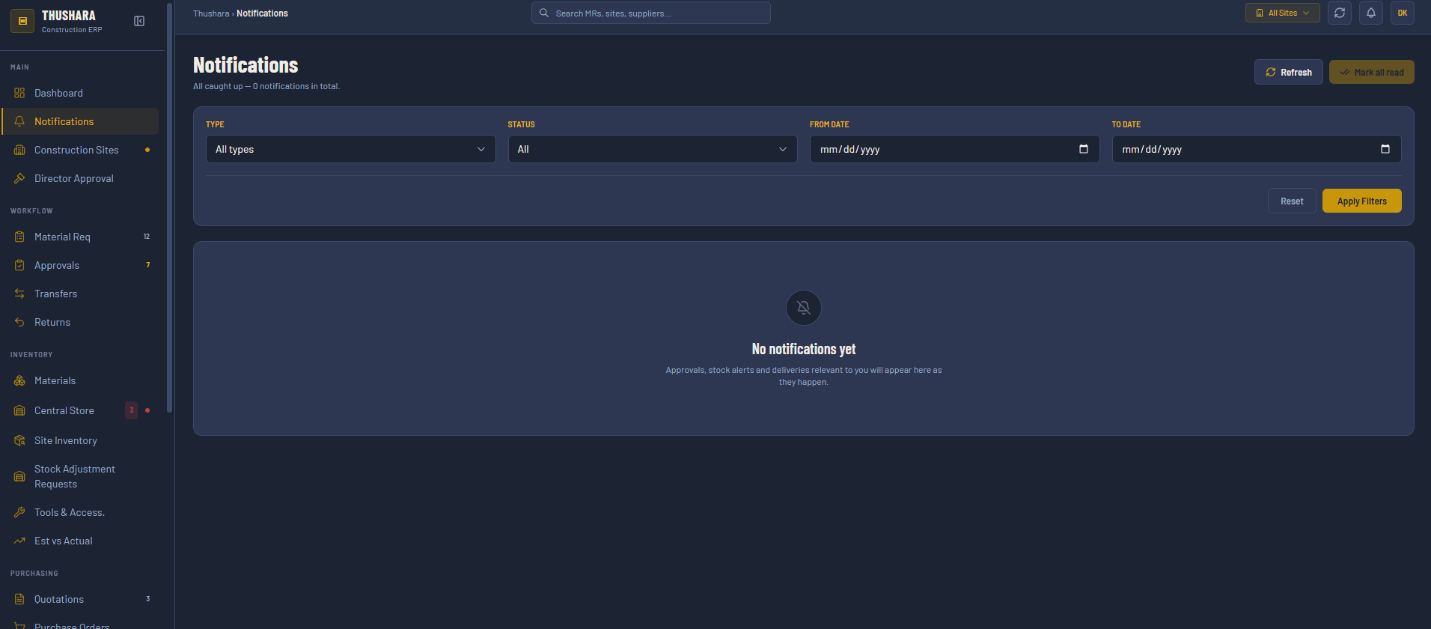
The Notifications page displays updates about approvals, stock alerts, and deliveries. Users can filter notifications by type, status, and date. They can also refresh notifications and mark all notifications as read. This helps users stay updated on important activities.
- ⚡ Multi-Criteria Filter Controls: Filter notification feeds by notification type, read/unread status, and custom date range (From Date to To Date)
- ⚡ Real-Time Delivery & Stock Alerts: Receive instant updates on pending approvals, urgent stock replenishment warnings, and site material deliveries
- ⚡ Clean Inbox Management: Includes one-click Refresh to sync the latest system notifications and Mark All Read for organized notification tracking
Construction Sites & Multi-Project Portfolio Directory
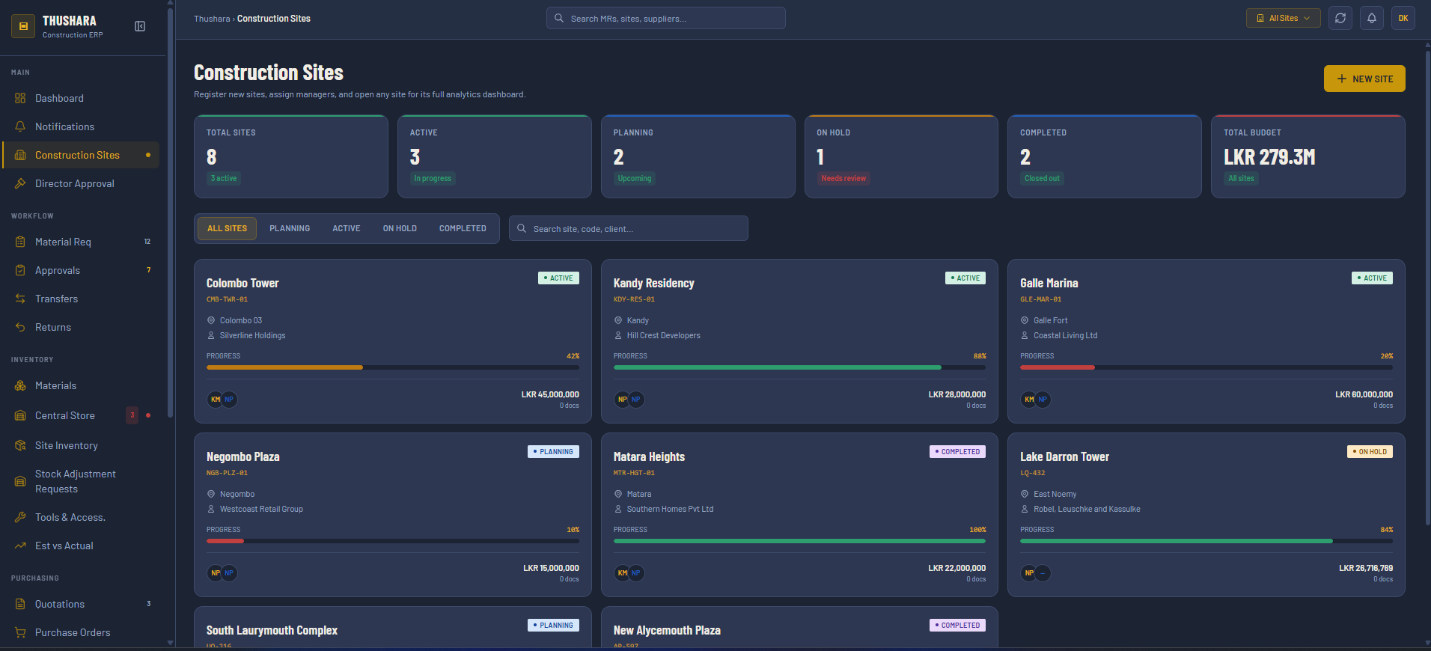
The Construction Sites page allows users to manage and monitor construction projects. It displays the total number of sites, active projects, planning projects, projects on hold, completed projects, and total budget. Users can create new sites, search for projects, filter sites by status, and view each project's location, client, progress, and budget. This helps managers track project progress and manage all construction sites in one place.
- ⚡ Project Lifecycle Analytics: High-level summary of active building projects (3), upcoming planning projects (2), on-hold projects (1), and closed out sites with total budget (LKR 279.3M)
- ⚡ Site Performance Cards: Detailed project cards showing client names, physical progress percentages, and allocated budgets
- ⚡ Quick Site Onboarding: '+ New Site' action allows project directors to register new sites, assign dedicated Project Managers, and initialize site inventory accounts
Executive Director Final Decision & Governance Portal
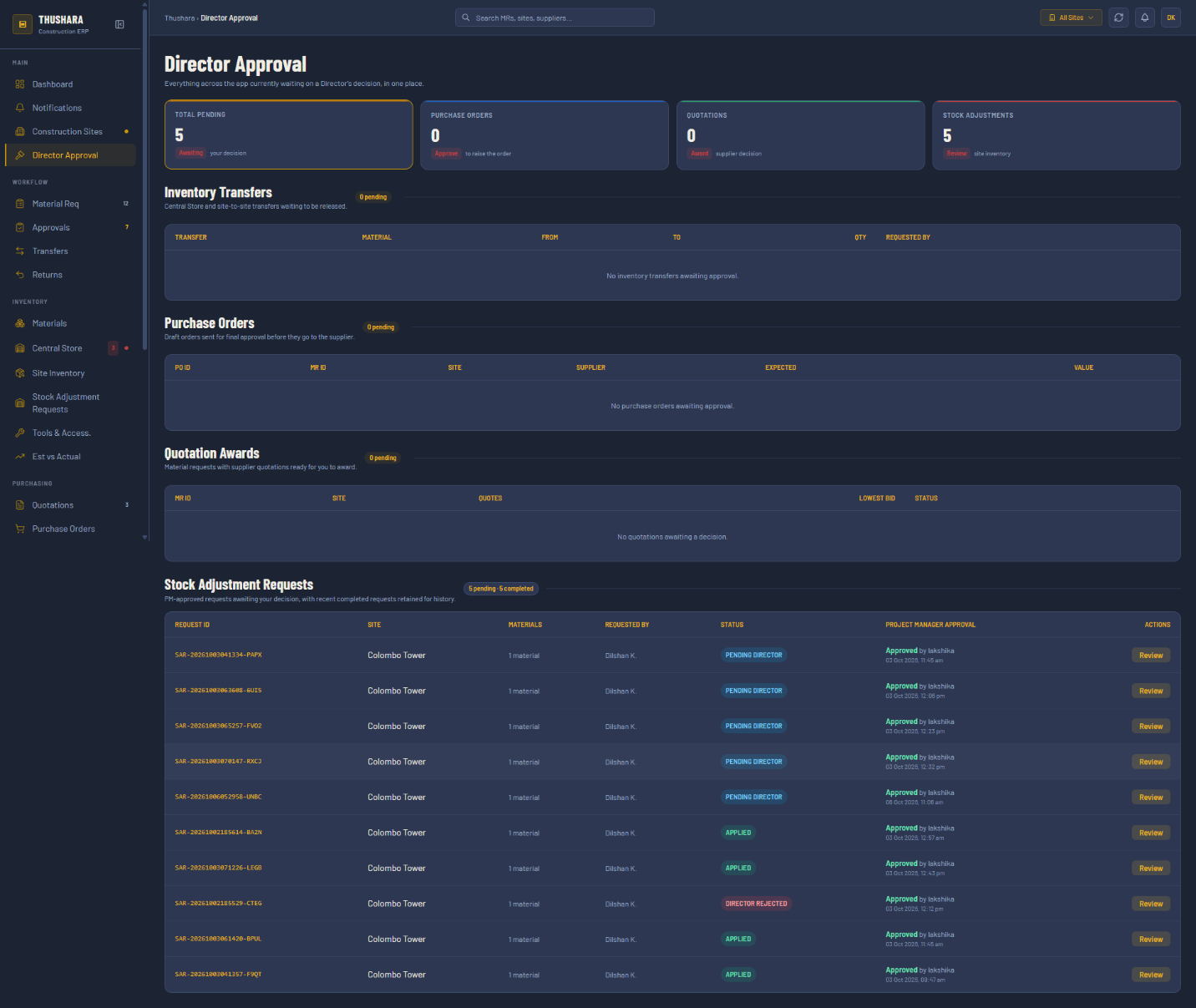
The Director Approval page is used to manage final approvals in the Thushara Construction ERP system. The Director can review inventory transfers, purchase orders, quotation awards, and stock adjustment requests. For stock adjustments, the request first goes to the Project Manager. Once approved, it appears on this page for the Director's final decision. The Director can review and approve or reject the request. This process ensures proper stock control, accountability, and accurate approval records.
- ⚡ Consolidated Pending Queue: Unifies approvals for Inventory Transfers, Purchase Orders, Quotation Awards, and Site Stock Adjustments in one central portal
- ⚡ Rigorous Adjustment Verification: Review SAR adjustments forwarded from the Project Manager with site names, material counts, requesting engineers, and PM approval timestamps
- ⚡ Final Decision Controls: Authorize stock changes with Review, Approve, or Reject buttons, ensuring zero unauthorized stock deductions
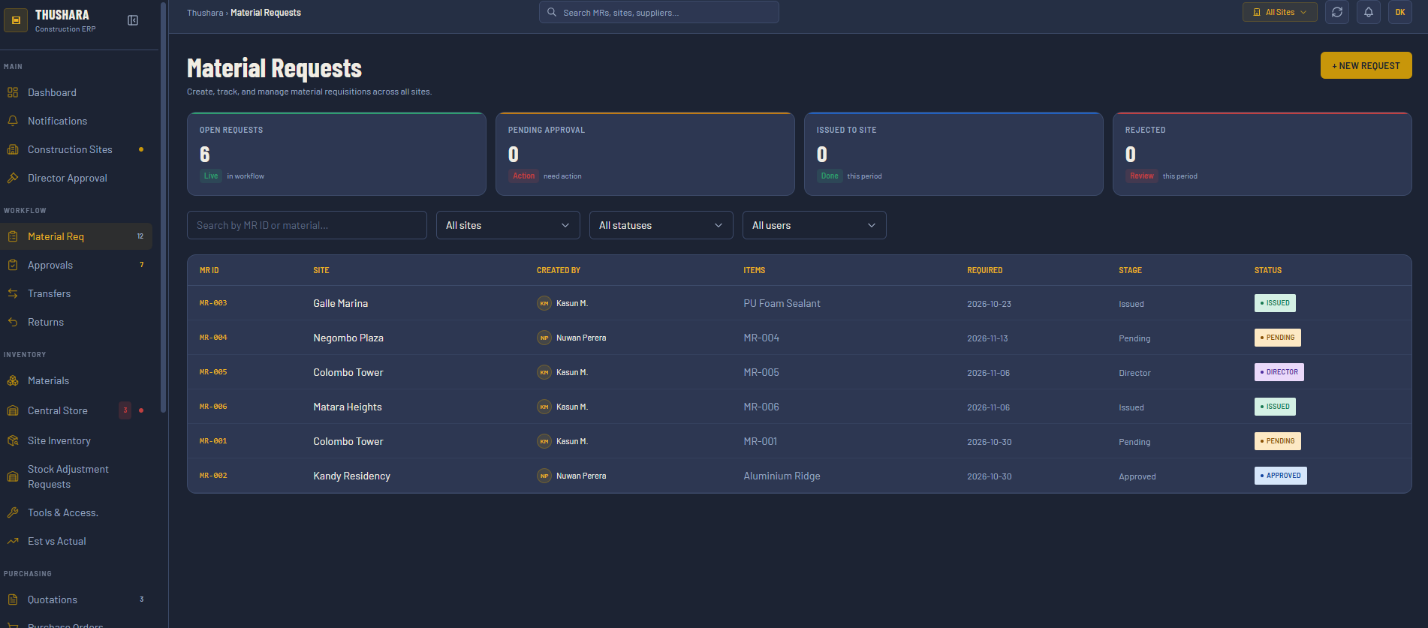
Material Requisition (MR) Tracking & Workflow Stages
The Material Requests page allows users to create, track, and manage material requests across all construction sites. It displays the number of open requests, pending approvals, materials issued to sites, and rejected requests. Users can create new requests, search for material requests, and filter them by site, status, and user. The table shows the request ID, site, creator, materials, required date, workflow stage, and status. This helps managers monitor material requirements and track each request through the approval process until materials are issued to the site.
- ⚡ Requisition Status Metrics: Instant tallies of Open Requests (6), Pending Approvals, Materials Issued to Site, and Rejected MRs
- ⚡ End-to-End Workflow Stages: Follow each MR from creation by site staff through Pending, Director review, Approved, and Issued stages
- ⚡ Search & Site Filtering: Quickly filter material requirements by construction site, current status, or user, and search directly by MR ID or material name
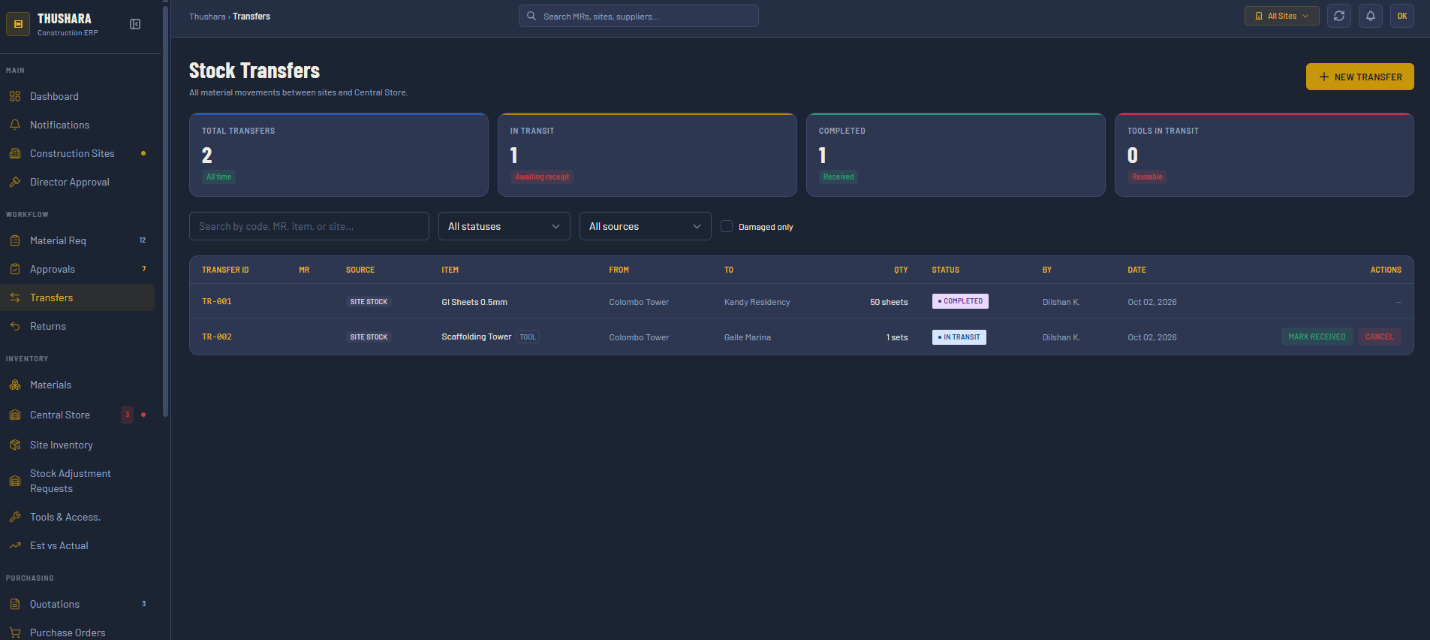
Inter-Site Stock Transfers & Logistics Dashboard
The Stock Transfers feature in the Thushara Construction ERP system is used to manage the movement of materials, tools, and other inventory items between construction sites and the Central Store. Users can create new transfer requests, track materials in transit, and confirm when materials have been received at the destination. The dashboard displays the total number of transfers, transfers currently in transit, completed transfers, and tools in transit. Users can search for transfers and filter them by status, source, or damaged items. The transfer table provides details such as the transfer ID, material requisition number (MR), source, item name, originating site, destination site, quantity, status, responsible employee, and date. Users can also mark materials as received or cancel a transfer when necessary. This feature helps maintain accurate inventory records, monitor material movements between locations, and ensure that construction materials and tools reach their intended destinations.
- ⚡ Transit Logistics Metrics: Clear monitoring cards for Total Transfers (2), Transfers In Transit (1 awaiting receipt), Completed Transfers, and Tools In Transit
- ⚡ Inter-Site Movement Records: Comprehensive table showing Transfer ID, Source, Item Name, From Site, To Site, Quantity, and Transferring Officer
- ⚡ Receiving Confirmation Actions: Site receivers can verify incoming shipments and click Mark Received to confirm intake or Cancel when transfers are voided
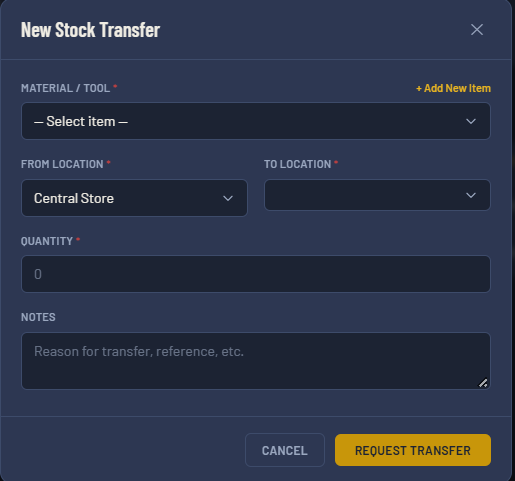
New Stock Transfer Request Panel
The New Stock Transfer modal enables project managers and store personnel to log a material or tool movement between the Central Store and active sites, or directly between construction sites. Users specify the item, source and destination locations, quantity, and reference notes before submitting the transfer request. This ensures all goods dispatches have clear audit records and authorized destinations.
- ⚡ Material & Tool Selection: Quick dropdown to choose from catalog materials or reusable site equipment, with an inline '+ Add New Item' option
- ⚡ Source & Destination Routing: Select origin (e.g., Central Store or specific site) and target construction site with instant inventory check
- ⚡ Transfer Quantities & Notes: Enter exact transfer quantities and mandatory explanation notes for delivery verification
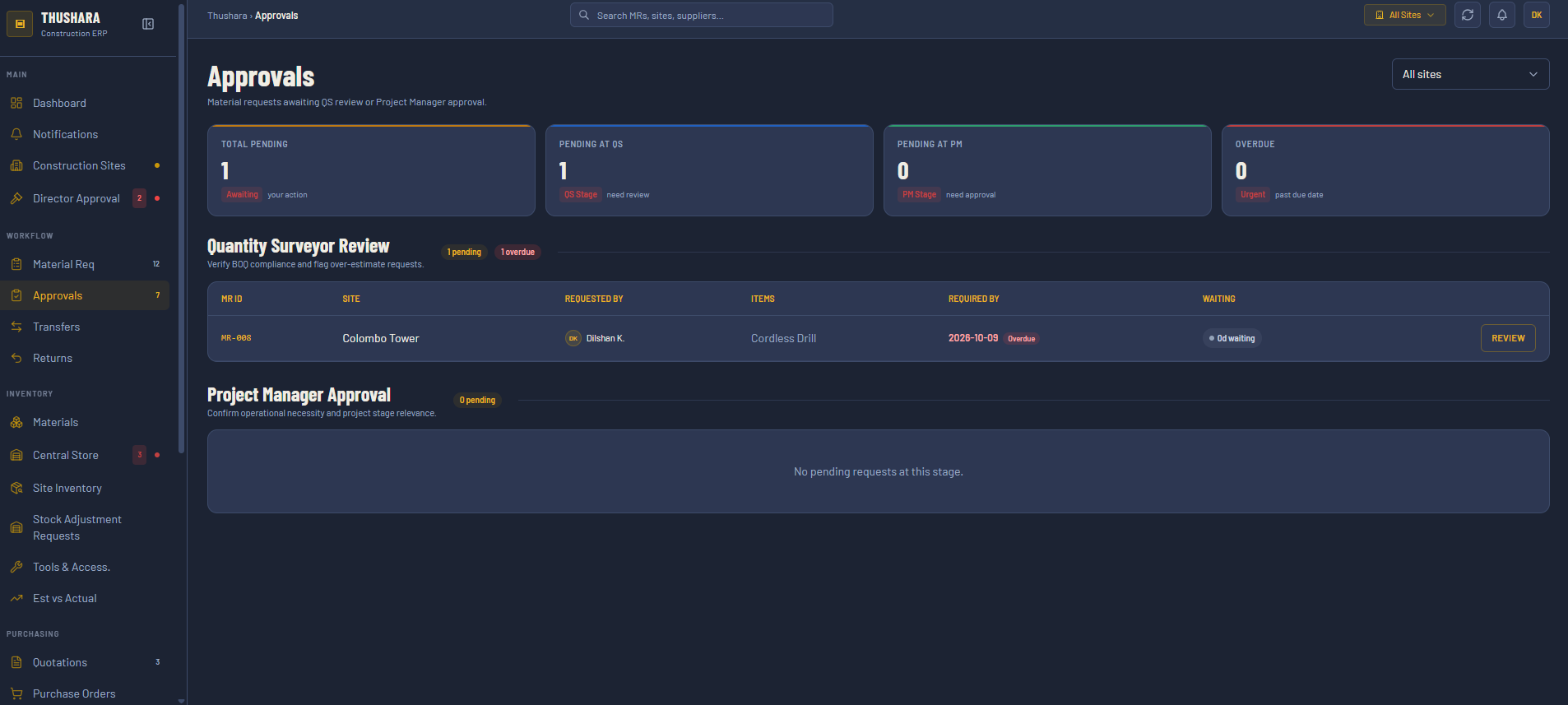
Two-Stage Approvals: QS Review & Project Manager Approval
The Approvals feature in the Thushara Construction ERP system is used to manage and review material requests that require approval from authorized staff members. The approval process includes two stages: Quantity Surveyor Review, which verifies bill of quantities (BOQ) compliance and checks for over-estimated requests, and Project Manager Approval, which confirms the operational necessity of the request and its relevance to the project. The dashboard displays the total number of pending requests, requests awaiting Quantity Surveyor review, requests pending Project Manager approval, and overdue requests. Users can filter requests by construction site to view approvals for specific locations. Each stage displays the requests waiting for review or approval, helping authorized staff track the approval process and identify delays. This feature helps ensure that material requests are properly verified and approved before resources are allocated to construction projects.
- ⚡ Quantity Surveyor (QS) Review Stage: Verifies BOQ limits and highlights overdue or over-estimated material requisitions
- ⚡ Project Manager (PM) Approval Stage: Confirms job site requirements, schedule priority, and operational necessity
- ⚡ Overdue Warning System: Highlights overdue requests with aging badges to prevent site construction bottlenecks
Site Returns & Equipment Recovery Management
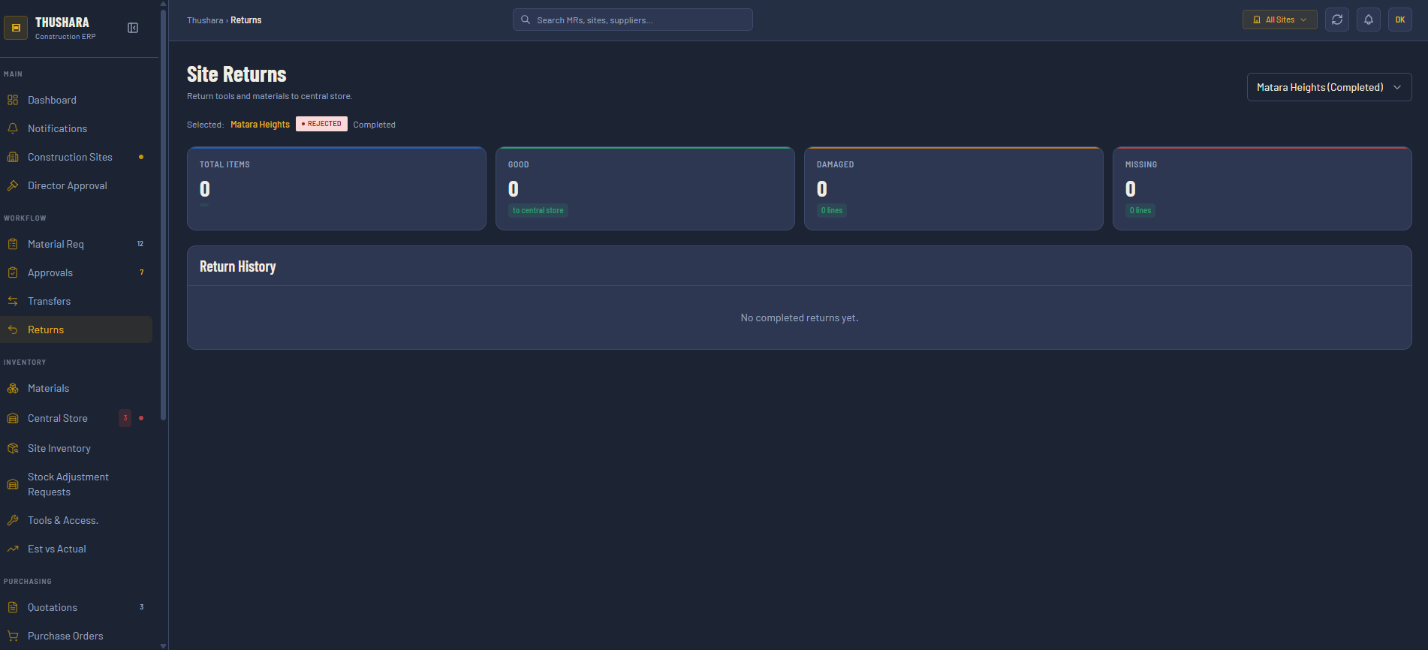
This feature is used to manage materials and tools returned from construction sites to the Central Store. It displays the total number of returned items and separates them into good, damaged, and missing items. Users can select a construction site, check the return status, and view the return history to keep track of returned materials and tools. This eliminates tool loss and ensures damaged items are flagged for repair or write-off.
- ⚡ Categorized Return Audits: Separate tallies for Good (returned to Central Store), Damaged, and Missing lines
- ⚡ Site-Specific Return History: Filter by construction site (e.g., Matara Heights) to view completed or rejected return batches
- ⚡ Inventory Reintegration: Good condition materials are automatically restored to central inventory balances upon inspection
Master Materials, Consumables & Equipment Catalogue
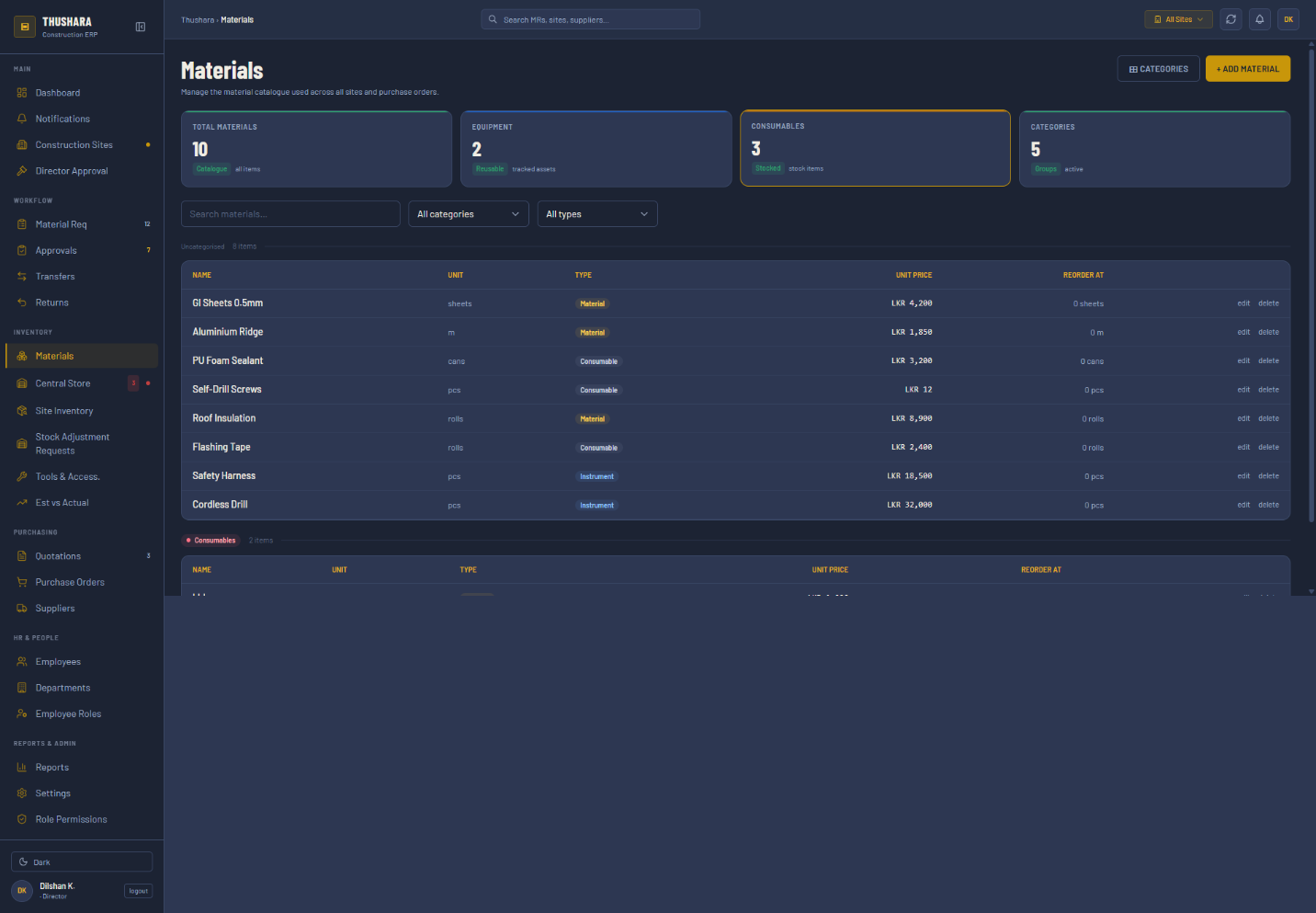
The Materials feature is used to manage all materials, tools, and consumables used in construction projects. Users can add new materials, view their units and prices, set reorder levels, and organize items into categories. The summary cards show the total materials, equipment, consumables, and categories available in the system. This master directory standardizes item specifications across all projects.
- ⚡ Catalogue Overview Cards: Track total materials, reusable equipment assets, consumables, and organized categories
- ⚡ Pricing & Units of Measure: Standard unit pricing in LKR, unit definitions (sheets, meters, cans, pcs, rolls), and reorder thresholds
- ⚡ Classification Tags: Distinct item badges distinguishing Materials, Consumables, and Instruments for easy tracking
Central Warehouse Inventory & Dispatch Control
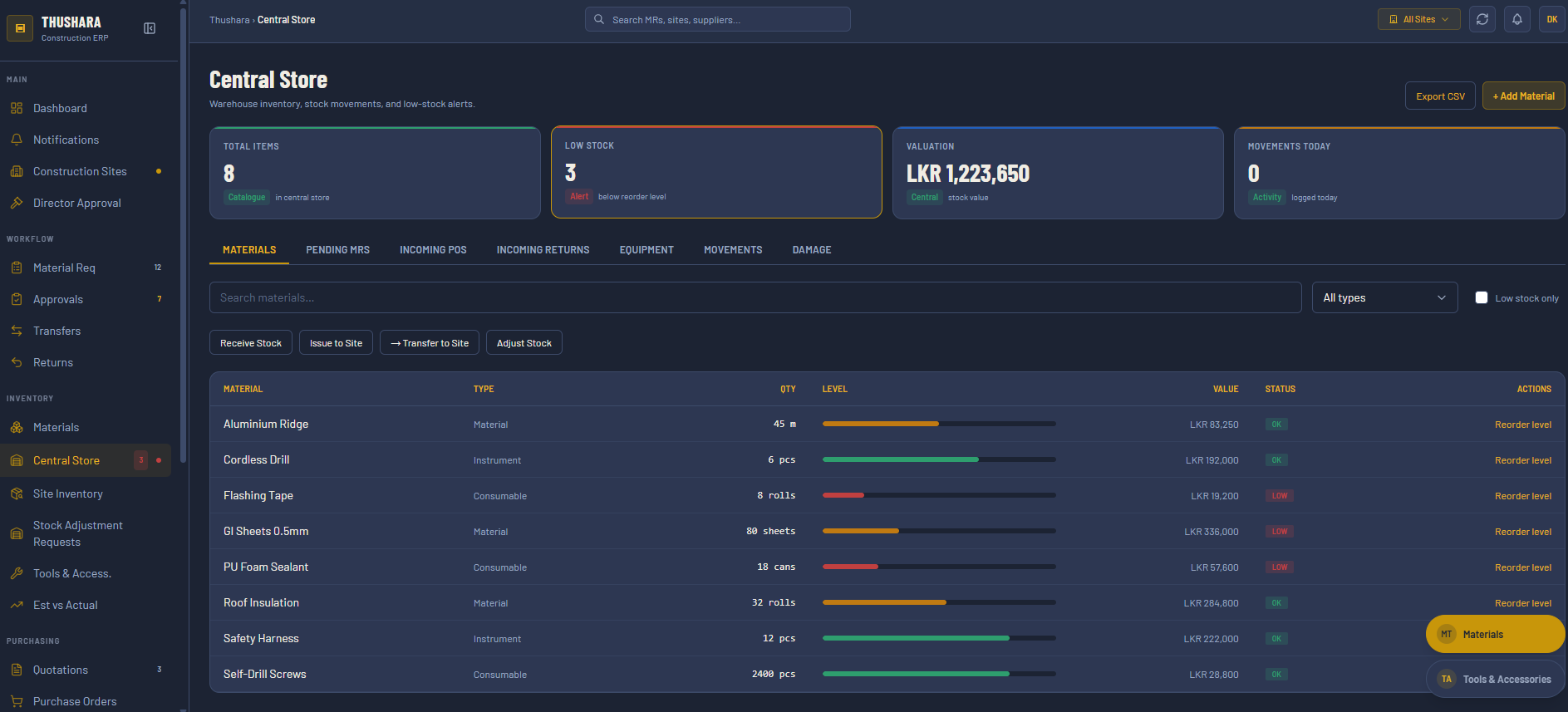
The Central Store feature is used to manage the main warehouse inventory. It displays the available quantities, stock value, low-stock items, and daily stock movements. Users can receive new stock, issue materials to construction sites, transfer stock between locations, and adjust stock quantities. The tabs also allow users to view pending material requests (MRs), incoming purchase orders (POs), incoming returns, equipment, stock movements, and damaged items. The search bar, filters, and low-stock option help users find materials quickly, while the Export CSV button allows inventory data to be exported for reporting.
- ⚡ Multi-Tab Workflow: Dedicated views for Materials, Pending MRs, Incoming POs, Incoming Returns, Equipment, Movements, and Damage
- ⚡ Live Stock Gauge & Warnings: Color-coded visual stock bars showing current stock against reorder thresholds with instant Low alerts
- ⚡ Operational Action Buttons: Direct buttons for Receive Stock, Issue to Site, Transfer to Site, and Adjust Stock with CSV export
Per-Site Inventory Levels & Consumption Tracking
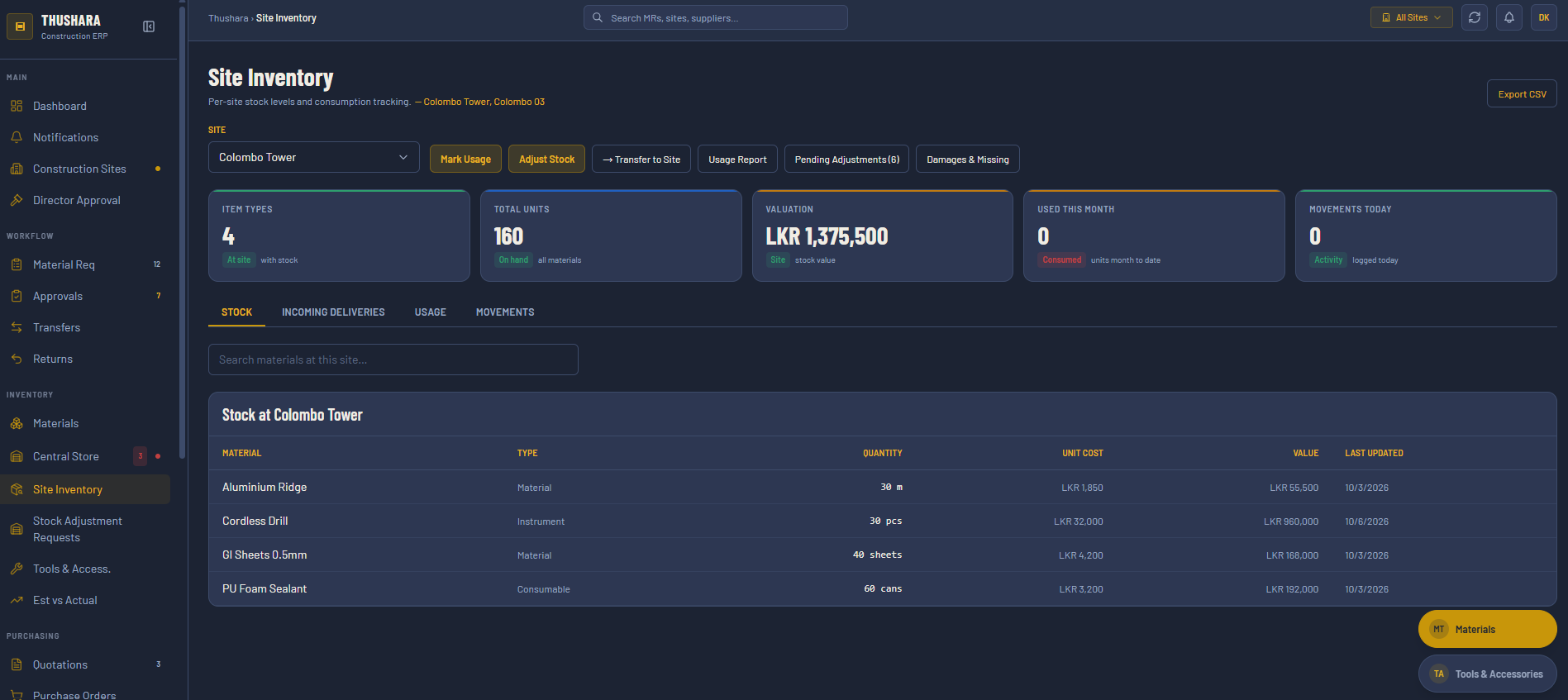
The Site Inventory page helps the company monitor construction materials and equipment available at each construction site. It displays the total quantity of materials, stock value, materials used, and stock movements. Users can select a site, search for materials, mark material usage, adjust stock quantities, transfer materials between sites, and view usage reports. For example, at Colombo Tower, the system shows 30 aluminium ridges, 30 cordless drills, 40 GI sheets, and 60 cans of PU foam sealant. This helps the company track materials accurately, reduce waste, and ensure that the required materials are available at each construction site.
- ⚡ Site-Specific Stock Summary: Instant view of Item Types (4), Total Units (160), Valuation (LKR 1,375,500), and Monthly Consumption
- ⚡ Daily Consumption Logging: 'Mark Usage' button allows site engineers to record materials consumed daily during building works
- ⚡ Detailed Material Table: Itemized list displaying material types, on-site quantity, unit cost in LKR, total value, and last updated date
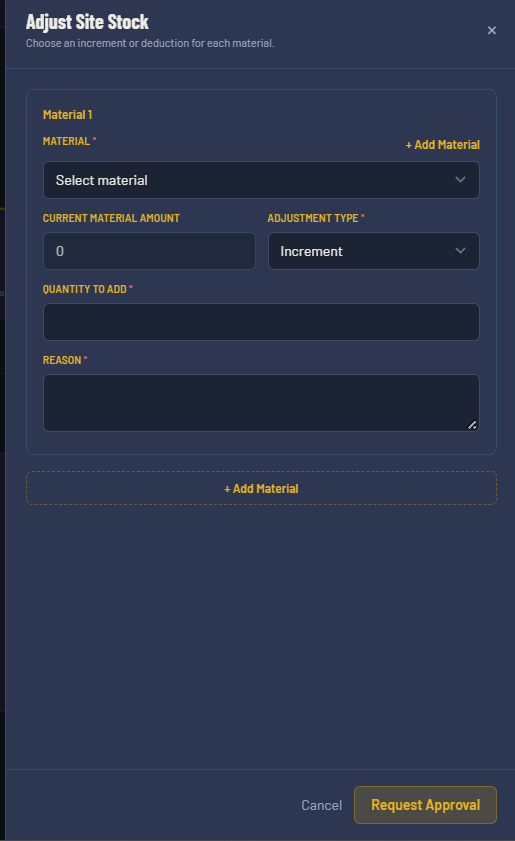
Adjust Site Stock Increment & Deduction Request Modal
The Stock Adjustment Request panel allows users to request an increase or decrease in the quantity of materials available at a construction site. Users select the material, choose the adjustment type, enter the quantity to add or deduct, and provide a reason for the change. After clicking Request Approval, the adjustment request is submitted and saved on the Stock Adjustment Requests page. This guarantees complete audit transparency for site inventory variances.
- ⚡ Increment / Deduction Toggle: Choose whether stock is being incremented (found stock / surplus) or deducted (breakage / waste)
- ⚡ Multi-Material Line Items: Add multiple materials to a single adjustment submission via the '+ Add Material' function
- ⚡ Mandatory Reason Field: Compulsory explanation area requiring physical audit notes or damage reports before submission
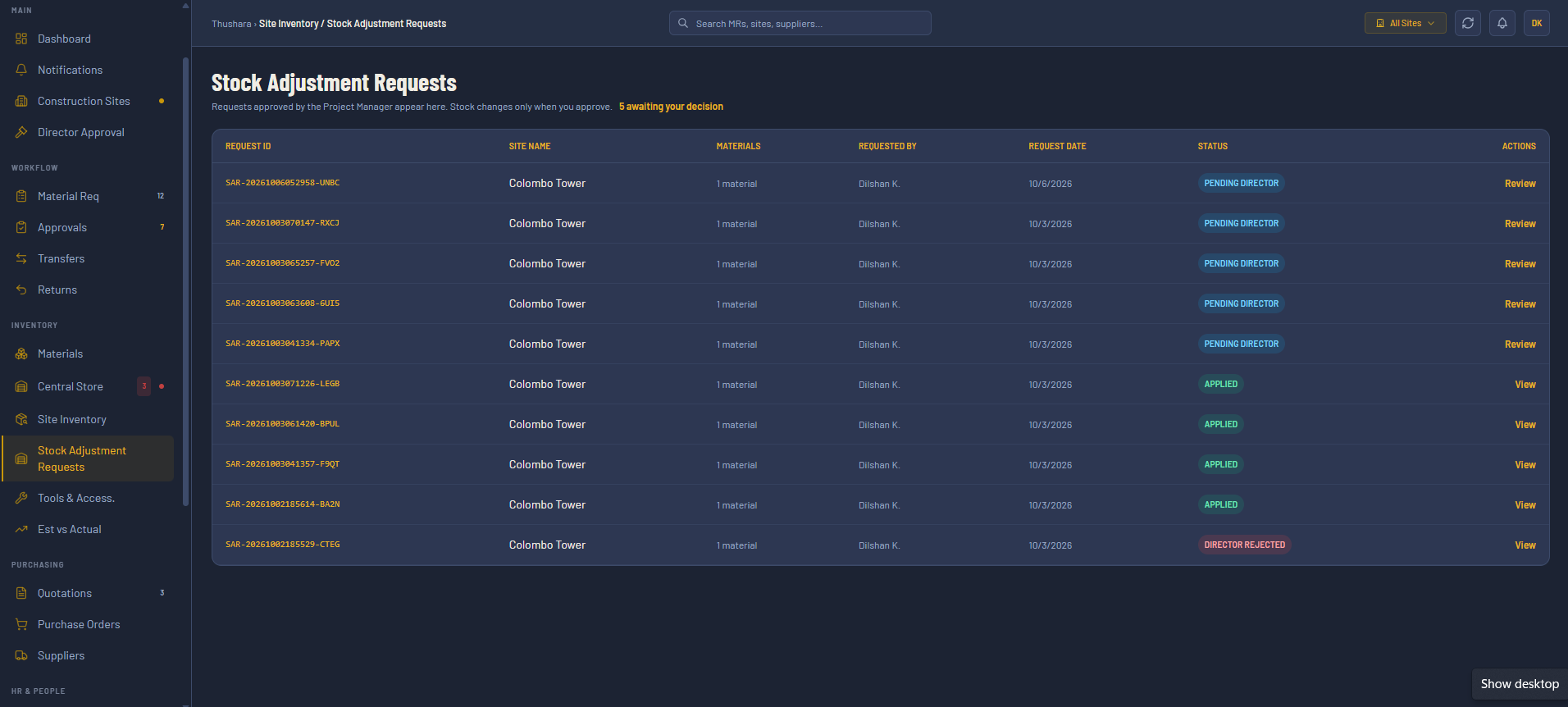
Stock Adjustment Requests & Audit Trail
The Stock Adjustment Requests page is used to manage requests for changing material stock at construction sites. The Project Manager is responsible for reviewing each request and deciding whether to approve or reject it. If the Project Manager approves the request, it is forwarded to the Director Approval page for the final decision. If the request is rejected, it will not proceed to the Director. The page displays details such as the request ID, site name, material name, requested quantity, current stock, reason for the adjustment, and request status. It also includes a notes section and a full history to track the actions taken by each user. The stock quantity changes only after the Director approves the request and the adjustment is applied. This approval process helps ensure that all stock adjustments are properly reviewed, authorized, and recorded in the system.
- ⚡ Structured Approval Sequence: Follows the strict PM Review -> Director Final Approval -> Applied workflow sequence
- ⚡ Complete Historical Ledger: Displays SAR identification numbers, site name, requester, request dates, and final applied/rejected status
- ⚡ Single-Click Audit Inspection: Review and View buttons open the complete log of notes, item photos, and PM feedback
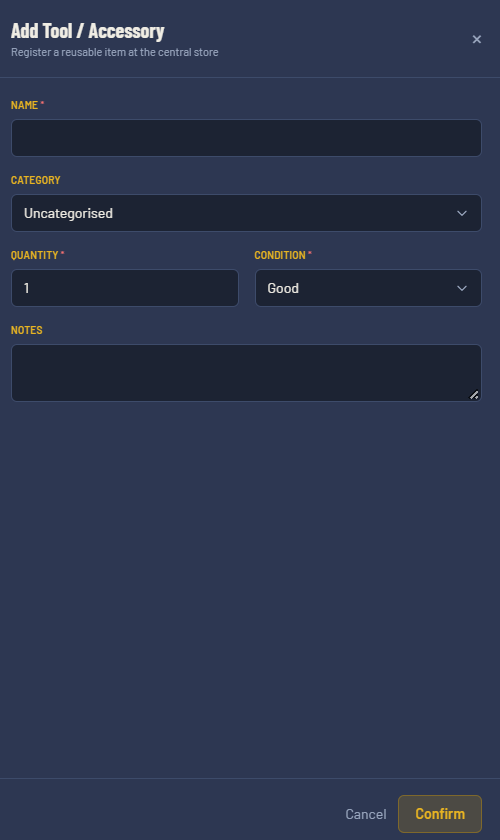
Add Tool & Reusable Asset Registration Modal
The Add Tool / Accessory form allows users to register new equipment by entering its name, category, quantity, condition, and notes. This modal enables storekeepers and site managers to add reusable company assets to the central registry with initial condition assessments. Proper asset registration at the point of receipt ensures long-term traceability and accountability across job sites.
- ⚡ Asset Identification: Enter official equipment names (e.g., Scaffolding Set, Rotary Hammer Drill, Total Station)
- ⚡ Category & Condition Options: Assign equipment to Access, Hand Tools, or Power Tools, and note condition (Good, Fair, Needs Repair)
- ⚡ Quantity & Serial Tracking: Specify registered quantities and maintenance or warranty details in the notes area
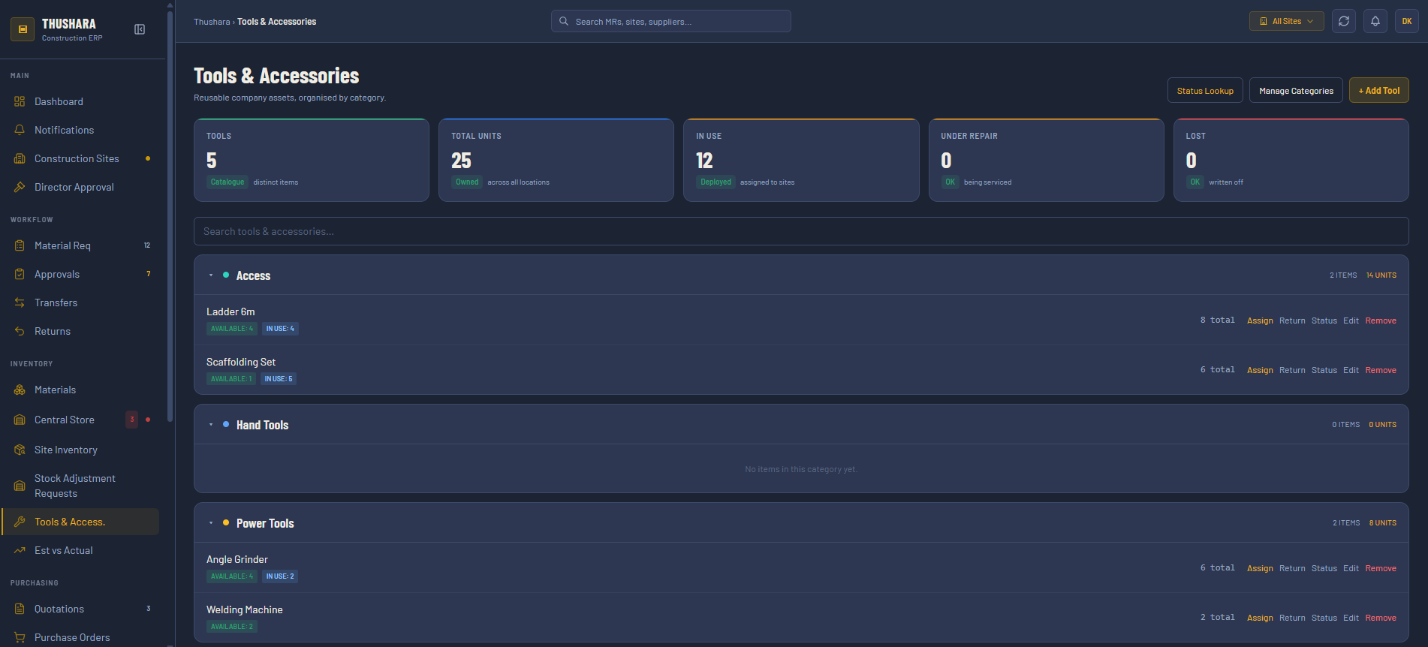
Reusable Asset Register & Tool Location Tracking
The Tools & Accessories page is used to manage reusable company tools and equipment across different construction sites. It displays a summary of the total tools, total units, tools currently in use, items under repair, and lost items. Tools are organised into categories such as Access, Hand Tools, and Power Tools, making it easier to find and manage equipment. Users can view the available quantity and the number of items currently in use, and perform actions such as assigning tools to sites, returning them, updating their status, editing details, or removing items. This page helps the company keep track of reusable assets, monitor their availability, and manage equipment efficiently across different locations.
- ⚡ Asset Health KPI Cards: Instant metrics showing Total Tools (5), Total Units (25), In Use (12), Under Repair (0), and Lost (0)
- ⚡ Categorized Visual Groups: Expandable category panels for Access Equipment (Ladders, Scaffolding) and Power Tools (Grinders, Welders)
- ⚡ Lifecycle Action Links: Dedicated actions to Assign to site, Return to store, Update condition status, Edit specs, or Remove
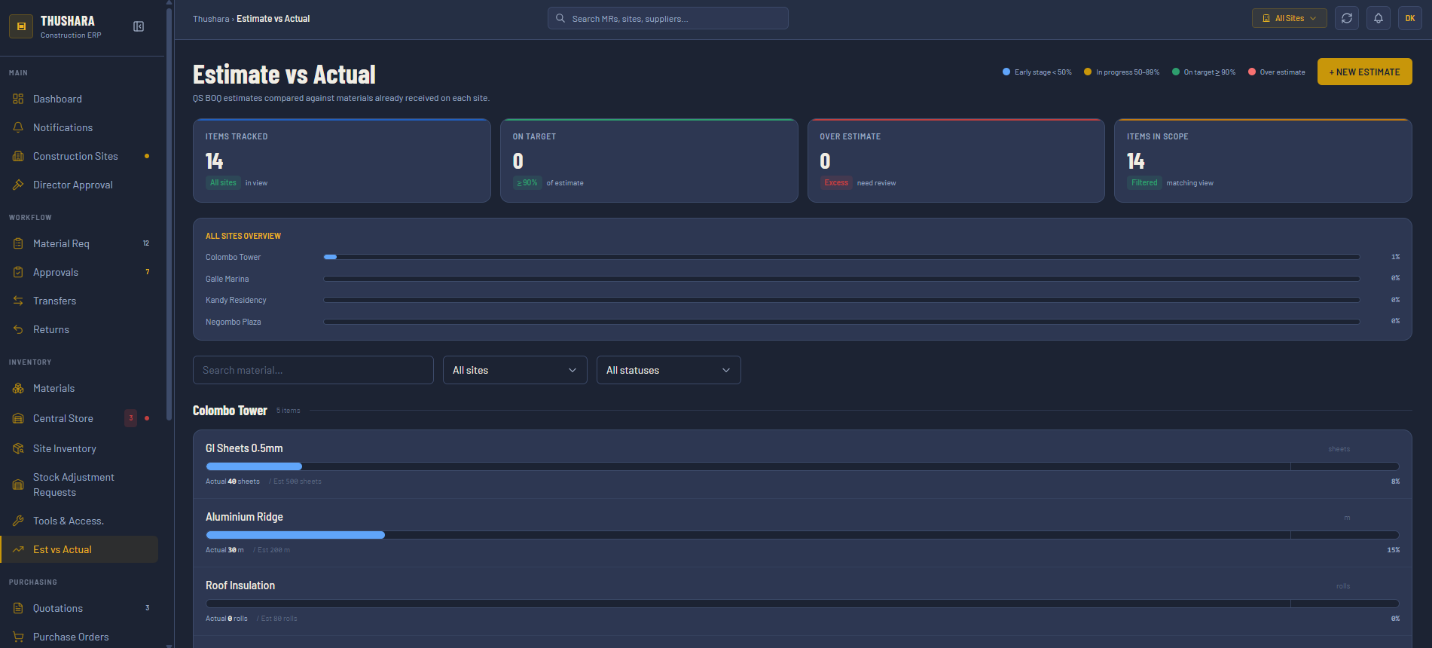
BOQ Estimate vs. Actual Material Consumption Tracking
The Estimate vs Actual page is used to compare the quantities of materials estimated in the Quantity Surveyor (QS) Bill of Quantities (BOQ) with the actual quantities received at each construction site. It displays the overall progress of each site and tracks the estimated and received quantities of individual materials. Users can view material details, including the unit, estimated quantity, actual quantity, and percentage of the estimate received. The page also provides filters to view specific sites and statuses, making it easier to identify materials that are below the estimated quantity, on target, or over the estimate. This page helps the company monitor material usage, identify shortages or excess quantities, and control construction costs more effectively.
- ⚡ BOQ Tracking Overview: Summary indicators for Items Tracked (14), On Target (≥90%), Over Estimate (Excess), and Items in Scope
- ⚡ Multi-Site Progress Comparison: Visual intake percentage bars comparing received materials against BOQ estimates for all active building projects
- ⚡ Itemized Material Variance: Detailed tracking bars for GI Sheets, Aluminium Ridge, and Roof Insulation comparing Actual vs. Estimated units
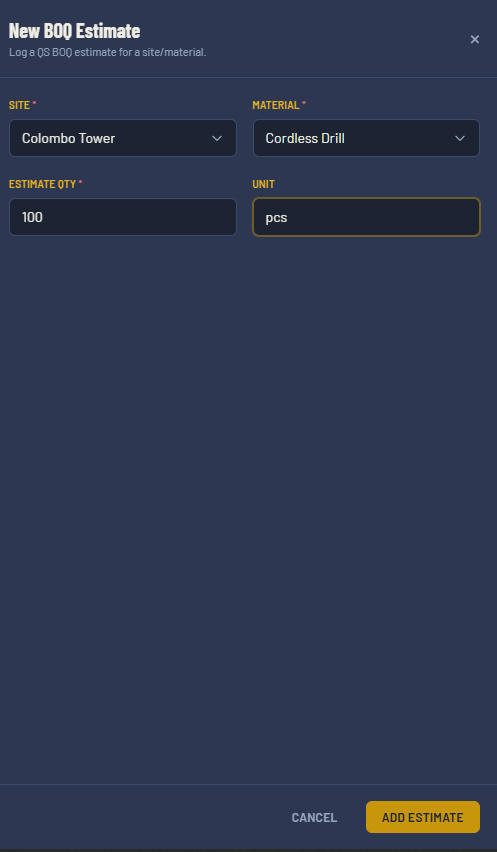
New QS BOQ Estimate Registration Modal
The New Estimate form allows users to add a new BOQ estimate by selecting the construction site and material, entering the estimated quantity, and specifying the unit. It logs QS BOQ baseline targets for material tracking across construction sites. This establishes the quantitative benchmark against which site requisition requests are checked, helping control construction costs more effectively.
- ⚡ Site & Material Selection: Dropdown menus to pair an active construction site (e.g., Colombo Tower) with any registered catalog material
- ⚡ Estimated Quantity Input: Enter target BOQ quantity determined during quantity surveying and architectural planning
- ⚡ Unit Definition: Auto-populates or configures standard measurement units (pcs, meters, rolls, sheets) to ensure calculation accuracy
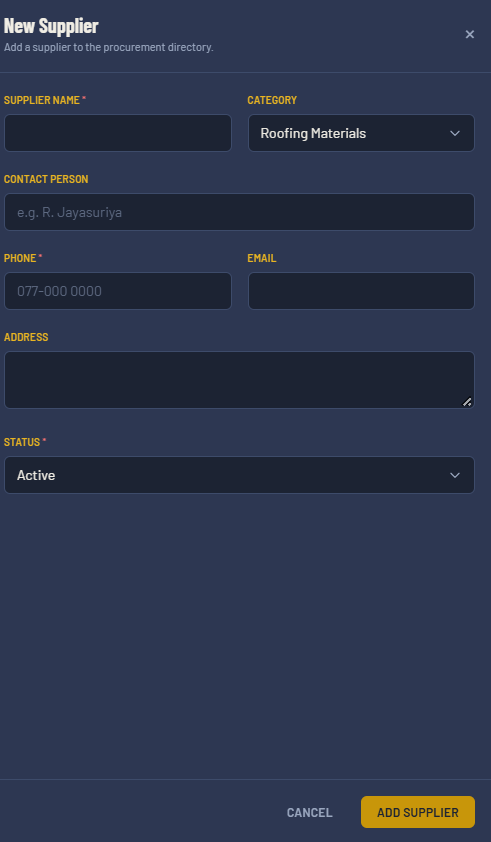
New Supplier Registration & Onboarding Modal
The New Supplier form allows users to register a supplier by entering the supplier name, category, contact person, phone number, email, address, and status. After clicking Add Supplier, the supplier’s details can be stored in the system and used for future quotation requests and purchasing activities. Maintaining verified vendor details accelerates procurement and delivery lead times.
- ⚡ Comprehensive Contact Entry: Captures supplier company name, contact person name, telephone number, and official email address
- ⚡ Category Tagging: Assign suppliers to trade categories (e.g., Roofing Materials, Hardware & Fasteners, Electrical, Concrete)
- ⚡ Status Toggle: Set initial vendor status to Active or Pending Verification for secure vendor onboarding
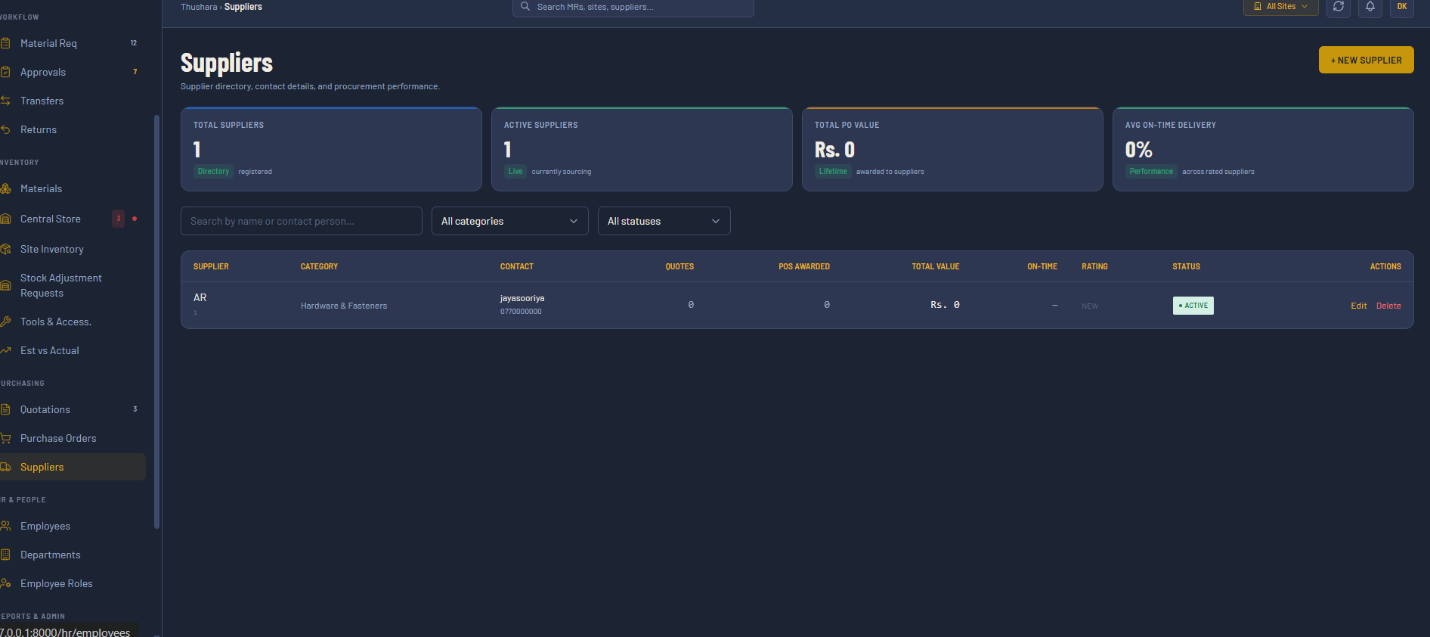
Supplier Directory & Vendor Procurement Performance
The Supplier’s page is used to manage supplier information and monitor supplier performance for the company’s procurement activities. It displays summary details such as the total number of registered suppliers, active suppliers, total purchase order (PO) value, and average on-time delivery rate. The supplier directory shows each supplier’s name, category, contact details, number of quotations submitted, purchase orders awarded, total order value, delivery performance, rating, and status. Users can filter suppliers by category and status and use the Edit and Delete functions to manage existing supplier records. This page helps the company maintain an organized supplier database, compare supplier performance, and make better purchasing decisions.
- ⚡ Procurement KPI Cards: Summary metrics for Total Suppliers, Active Suppliers, Total PO Value (Rs.), and Average On-Time Delivery Rate
- ⚡ Vendor Performance Directory: Track submitted quotes, POs awarded, total lifetime spend, on-time delivery percentages, and vendor ratings
- ⚡ Search & Action Functions: Search suppliers by name or contact person, filter by category/status, with quick Edit and Delete controls
Staff Directory & Construction Workforce Management
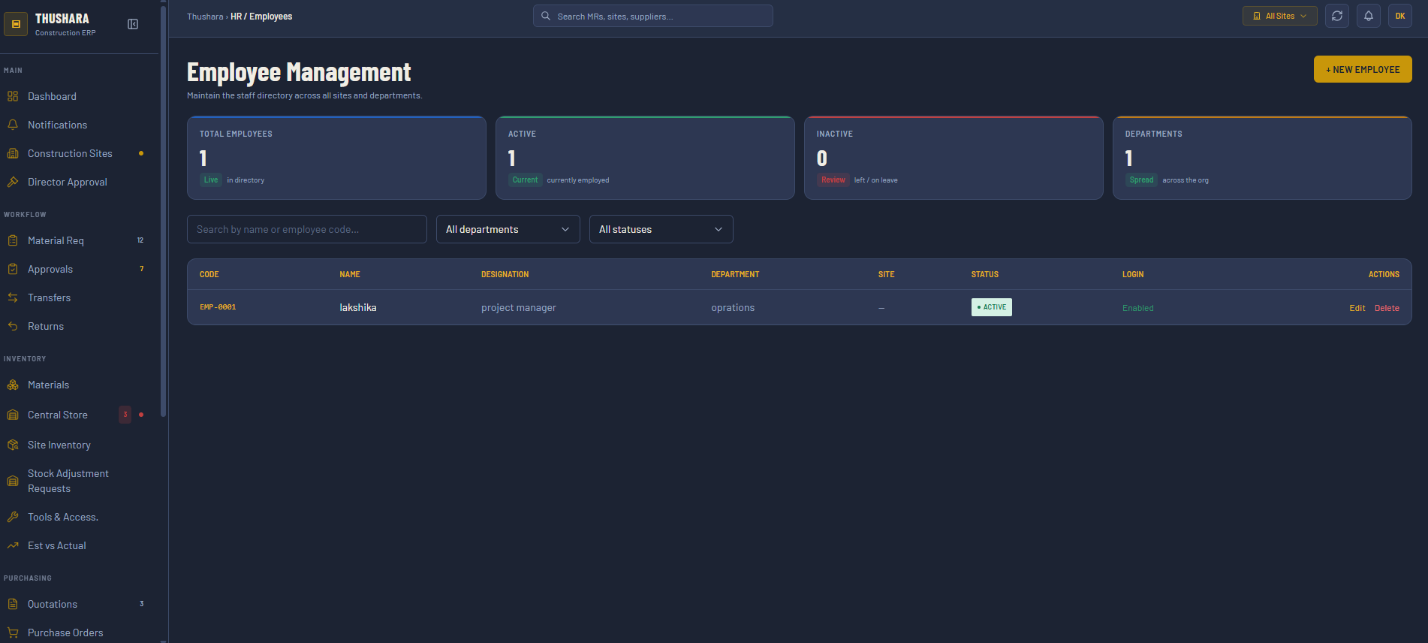
The Employee Management page is used to manage the company’s staff directory across different sites and departments. It displays the total number of employees, active and inactive employees, and the number of departments. The employee table shows each staff member’s employee code, name, designation, department, assigned site, employment status, and system login access. Users can filter employees by department or status and use the Edit and Delete functions to manage existing employee records. This page helps the company maintain accurate staff records, organize employees by department and site, and manage their employment status and system access efficiently.
- ⚡ Workforce Overview Cards: Metrics showing Total Employees (1), Active Personnel (1), Inactive / On Leave Staff (0), and Total Departments (1)
- ⚡ Detailed Staff Roster: Displays Employee Code (EMP-0001), full name, designation, department, assigned site, status, and login access
- ⚡ Department & Status Filters: Quick filters to view employees by department (e.g., Operations, QS) or employment status
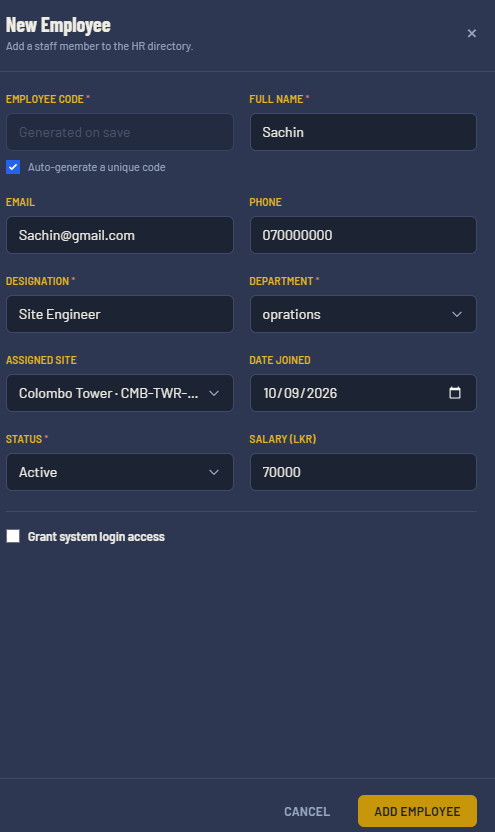
New Employee Onboarding & Access Provisioning Modal
The New Employee form allows users to register a staff member by entering their full name, email, phone number, designation, department, assigned site, joining date, employment status, and salary in LKR. The system automatically generates a unique employee code, and the Grant system login access option allows the employee to be given access to the system. Finally, clicking Add Employee saves the employee details in the directory. This streamlines HR administration and project staff assignment.
- ⚡ Automated Unique Code Generation: System automatically assigns sequential employee codes (e.g., EMP-0001) for clean organizational records
- ⚡ Site & Department Assignment: Link staff members to specific operational departments (e.g., Operations) and active construction sites (e.g., Colombo Tower)
- ⚡ Salary & System Access Control: Input base monthly salary in LKR and optionally grant ERP login access credentials with role assignment
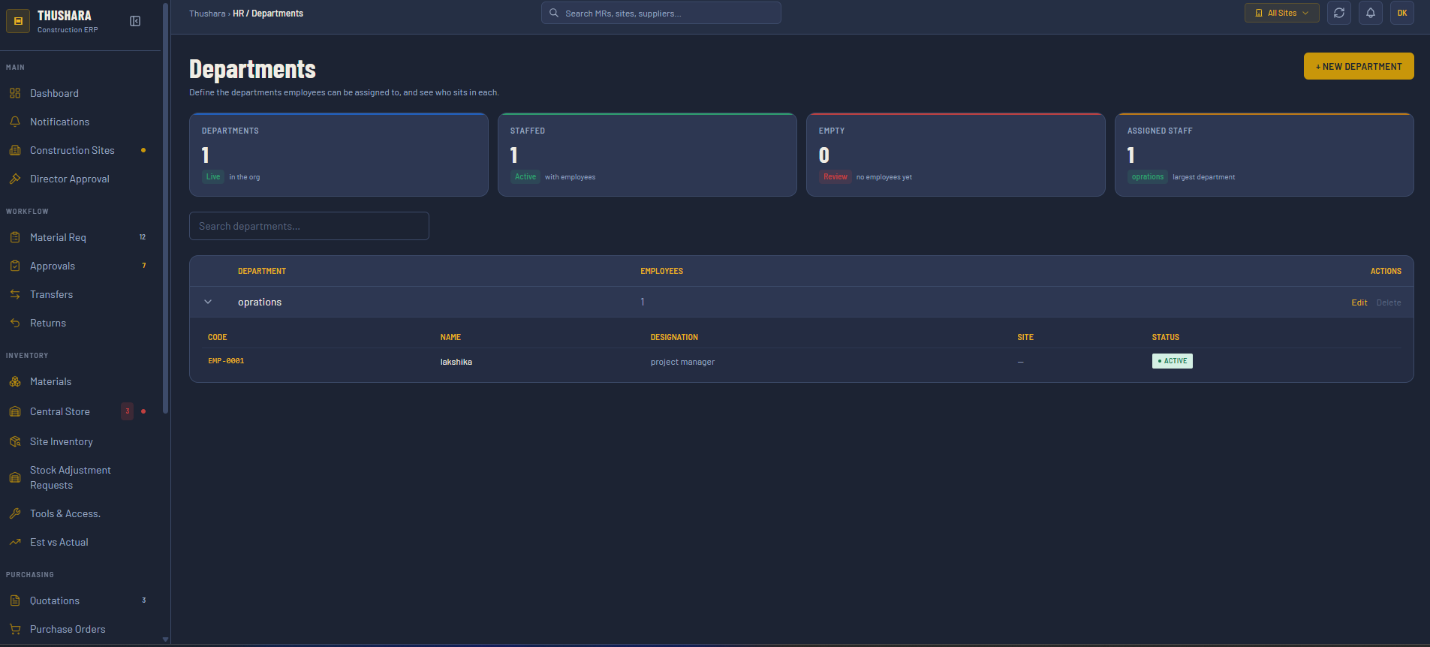
Organizational Departments & Staff Allocation
The Departments page is used to create and manage the company’s departments and view the employees assigned to each department. The dashboard displays the total number of departments, staffed departments, empty departments, and assigned staff members. The department table shows the department name and the number of employees assigned to it. Users can click Edit to update a department’s details or Delete to remove a department when appropriate. By selecting a department, users can also view its employees’ details, including employee code, name, designation, assigned site, and employment status. This feature helps organize employees into departments, monitor staff assignments, and maintain an organized company structure.
- ⚡ Department Health Summary: Real-time metrics for Total Departments (1), Staffed Units (1), Empty Departments (0), and Total Assigned Staff
- ⚡ Sub-Staff Collapsible Rosters: Expand any department to view assigned personnel with their employee code, full name, designation, site, and status
- ⚡ Department Management Tools: Edit department titles, manage organizational structure, and remove redundant department entries
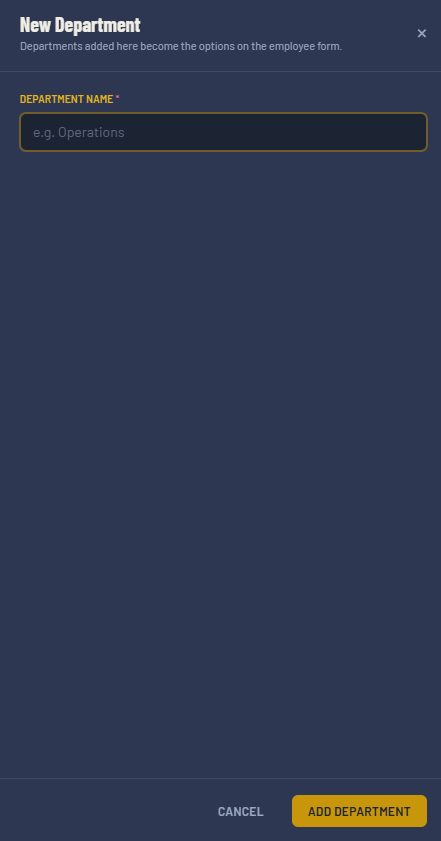
New Department Creation Modal
The New Department function opens a form where the user enters the required department name and clicks Add Department to save it. The Cancel button closes the form without adding the department. Once a department is created, it becomes available as an option in the Employee Management form when registering or editing employees. This dynamic organizational hierarchy keeps the company structure flexible as new project divisions open.
- ⚡ Streamlined Department Setup: Fast dialog to establish new functional units (e.g., Quantity Surveying, Logistics, Procurement, Civil Engineering)
- ⚡ Instant System-Wide Availability: Newly created departments automatically populate throughout employee registration and role assignment menus
- ⚡ Clean Validation Rules: Validates department names to eliminate duplicate departmental structures
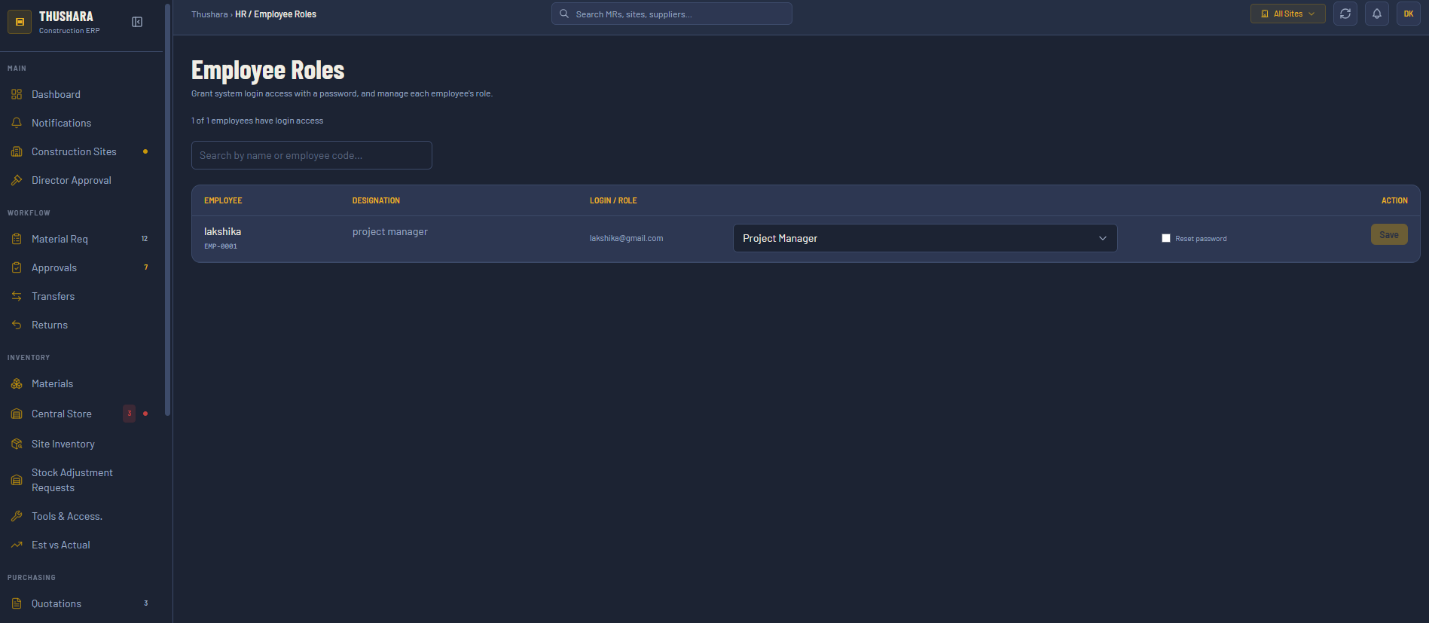
Employee Login Credentials & Role Assignment Management
The Employee Roles page is used to manage employees’ system login access, passwords, and user roles. It displays the number of employees who have login access and lists each employee’s name, employee code, designation, and login details. Users can assign or change an employee’s system role, such as Project Manager, to control their access to the system’s features and functions. The Reset Password function allows an employee’s password to be reset when necessary, while the Save button saves the updated login and role settings. This page helps ensure that employees have the correct level of system access according to their job responsibilities and supports secure management of employee accounts.
- ⚡ Login Access Tracking: Displays the exact count of employees granted active system login credentials (e.g., 1 of 1 employees)
- ⚡ Role Assignment Dropdown: Assign system roles (Project Manager, QS, Site Engineer, Storekeeper) with immediate permission enforcement
- ⚡ Password Reset Security: Secure Reset password checkbox and Save button enables administrators to reset passwords and secure accounts
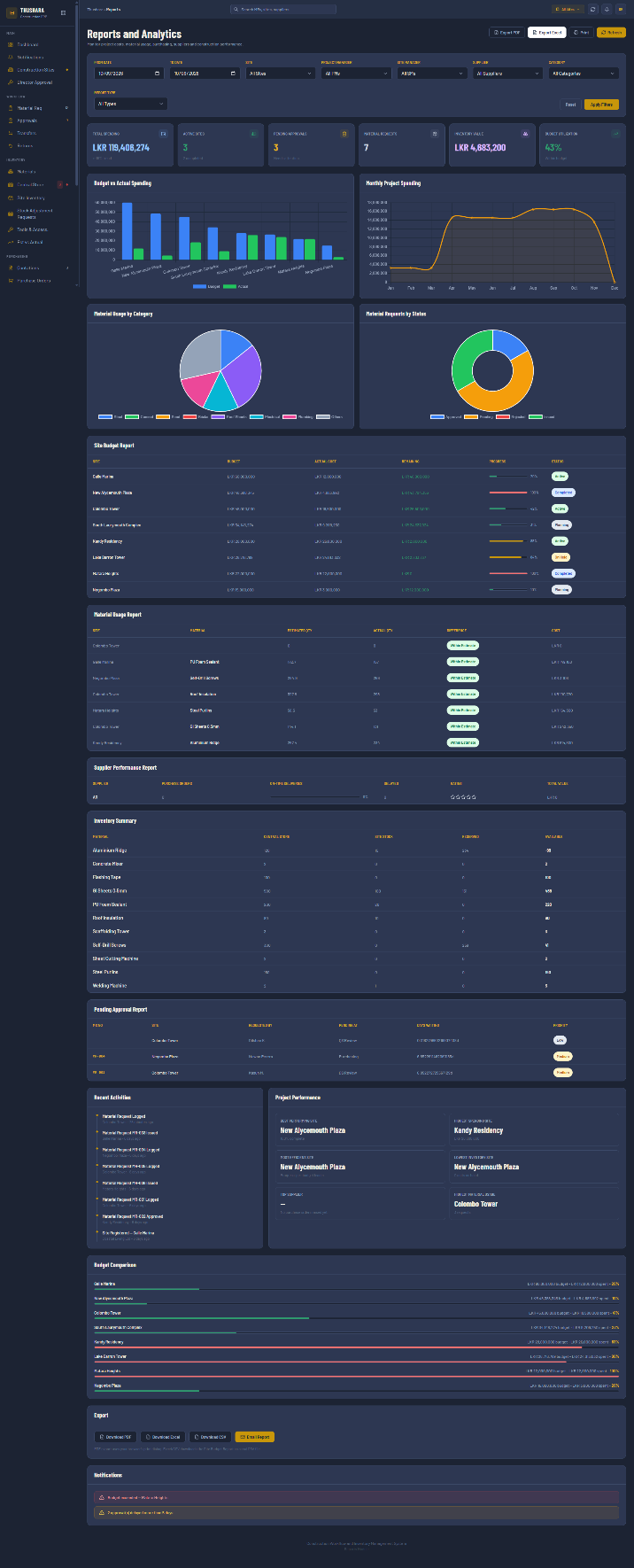
Enterprise Construction Analytics & Multi-Site Reports
The Reports and Analytics page helps management monitor project expenses, construction progress, material usage, inventory, supplier performance, and pending approvals across all sites. Users can filter reports by date, site, project manager, supplier, category, and report type using Apply Filters and Reset. The dashboard displays key statistics and charts, while the reports show site budgets, actual costs, material quantities, stock availability, supplier performance, and delayed approvals. The Project Performance section helps identify the best-performing sites and highest spending. Users can use Export PDF, Export Excel, Print, and Refresh to generate, print, and update reports. This module helps management control costs, identify problems, and make better decisions.
- ⚡ Comprehensive Analytics Dashboard: Visual charts for Budget vs. Actual Spending, Monthly Project Spending curves, and Material Usage category breakdown
- ⚡ Multi-Site Reports & Inventory Summary: Site Budget Reports, Material Usage Reports, Supplier Performance, and Central Inventory Summary
- ⚡ Multi-Format Export Options: Instant report generation via Export PDF, Export Excel, Print, and automated Email Report distribution
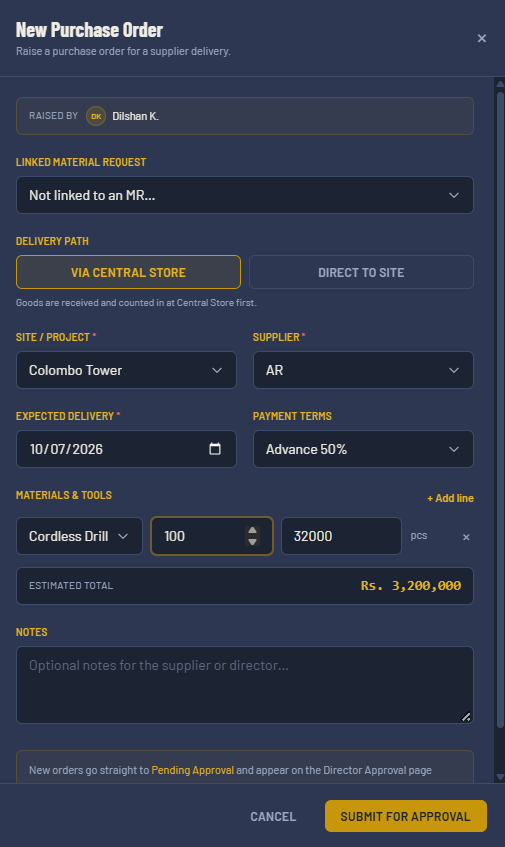
New Purchase Order (PO) Creation Modal
The New Purchase Order form allows users to select a linked Material Request, choose the delivery path (Via Central Store or Direct to Site), select the site and supplier, enter the expected delivery date and payment terms, and add materials or tools with their quantities and estimated costs. Users can also include notes and review the estimated total before clicking Submit for Approval. Newly submitted purchase orders go directly to the Pending Approval stage and appear on the Director Approval page without a separate submission step.
- ⚡ Dual Delivery Path Routing: Choose between Via Central Store (received and counted in Central Store first) or Direct to Site for direct job delivery
- ⚡ Linked Material Requests: Seamlessly connect orders to approved Material Requests (MRs) or raise standalone purchase orders
- ⚡ Line-Item Costing & Terms: Add multiple materials/tools with estimated costs (e.g., Cordless Drill 100 pcs at Rs. 3,200,000) and specify payment terms
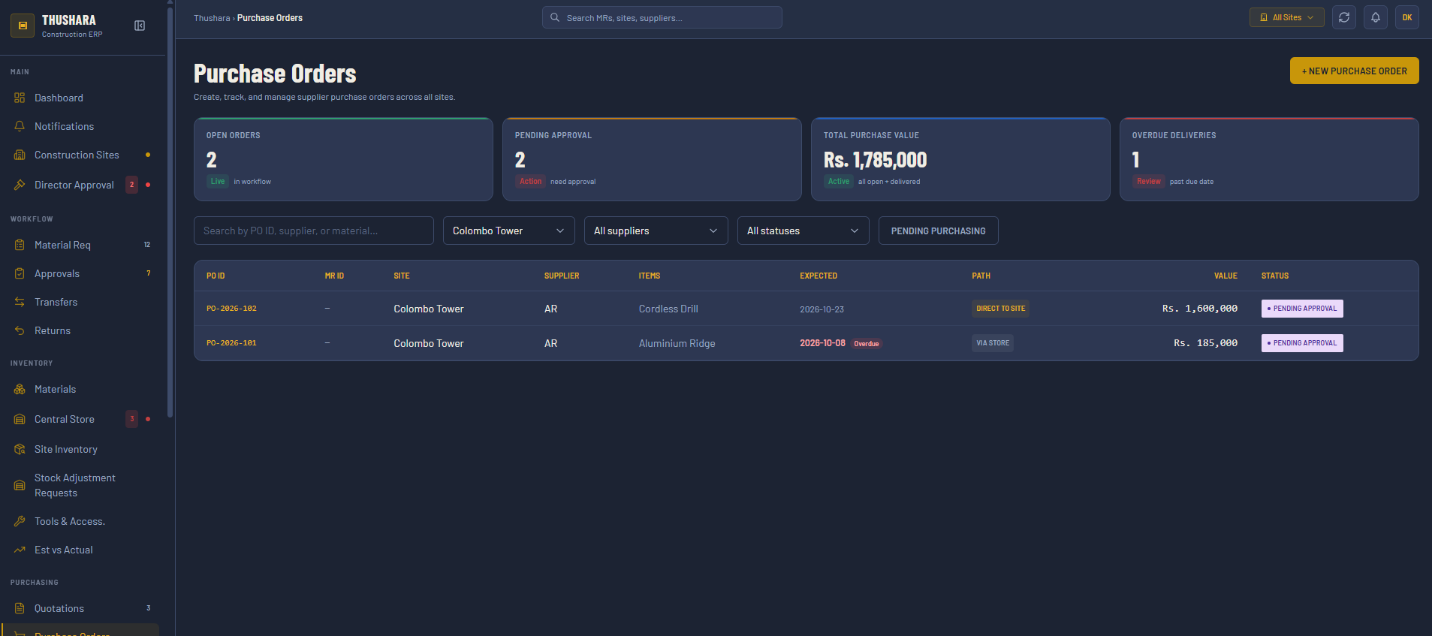
Supplier Purchase Orders Directory & Tracking
The Purchase Orders page is used to create, track, and manage supplier purchase orders for materials and tools required at construction sites. The dashboard displays open orders, pending approvals, total purchase value, and overdue deliveries. Users can filter purchase orders by site, supplier, and status to find specific records. The purchase order table displays the PO ID, linked MR ID, site, supplier, items, expected delivery date, delivery path, order value, and approval status. This module helps the company manage purchasing activities, monitor deliveries, and track approval progress efficiently.
- ⚡ Procurement Summary Cards: Real-time visibility into Open Orders (2), Pending Approvals (2), Total Purchase Value (Rs. 1,785,000), and Overdue Deliveries
- ⚡ Delivery Path Indicators: Badges highlight logistics routing—DIRECT TO SITE vs VIA STORE—for incoming consignments
- ⚡ Overdue Delivery Alerts: Highlights past-due deliveries with red alert tags to prevent construction scheduling delays
Role-Based Access Control (RBAC) & Governance Matrix
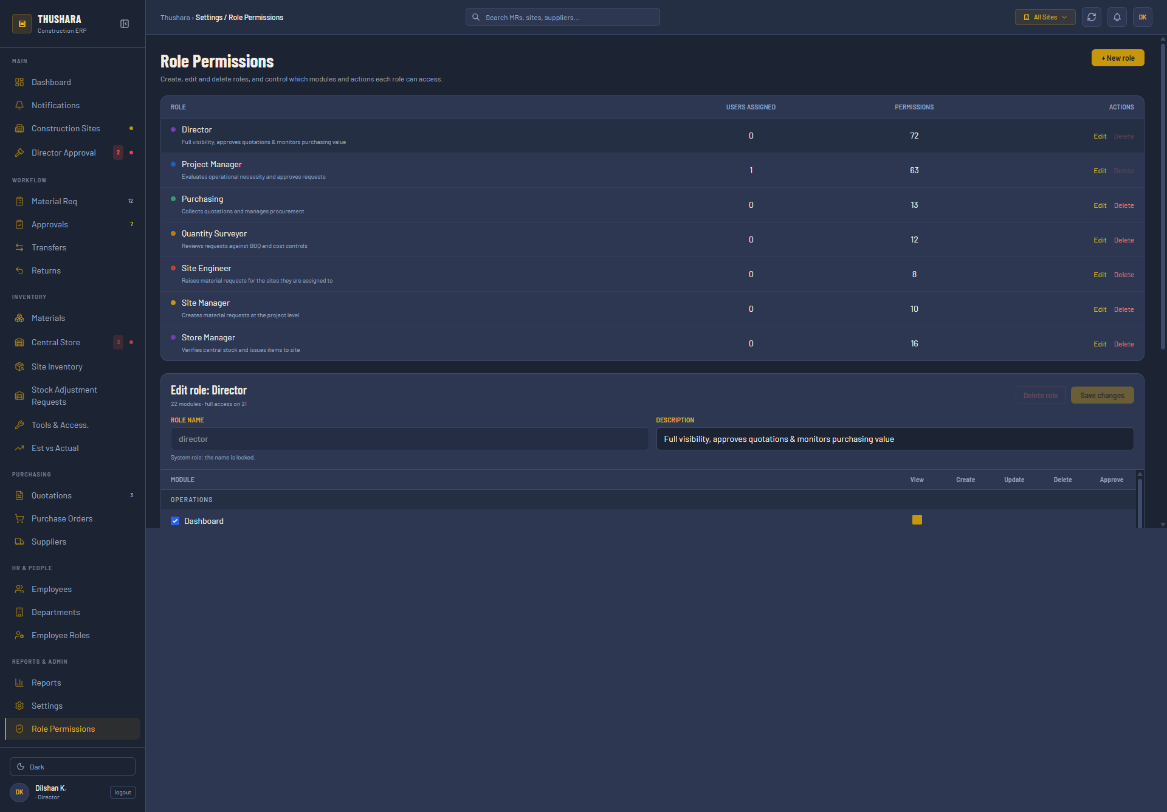
The Role Permissions page is used to manage user roles and control access to different modules and actions in the system. It displays the available roles, such as Director, Project Manager, Purchasing, Quantity Surveyor, Site Engineer, Site Manager, and Store Manager, along with the number of users assigned and their permissions. Users can select Edit to modify a role’s permissions or delete to remove a role when appropriate. System role names, such as Director, are locked to prevent renaming. This page helps protect sensitive information, assign appropriate responsibilities, and ensure that users can access only the functions permitted for their roles.
- ⚡ Role Permission Registry: Displays roles (Director 72 perms, PM 63 perms, Purchasing 13 perms, QS 12 perms, Site Engineer 8 perms, Store Manager 16 perms)
- ⚡ Assigned Users Count: Real-time visibility into how many active users hold each system role across the company
- ⚡ System Security Protection: System-critical role names are locked to prevent accidental corruption while allowing fine-grained permission adjustments
Custom Role Creation & Granular Permission Matrix
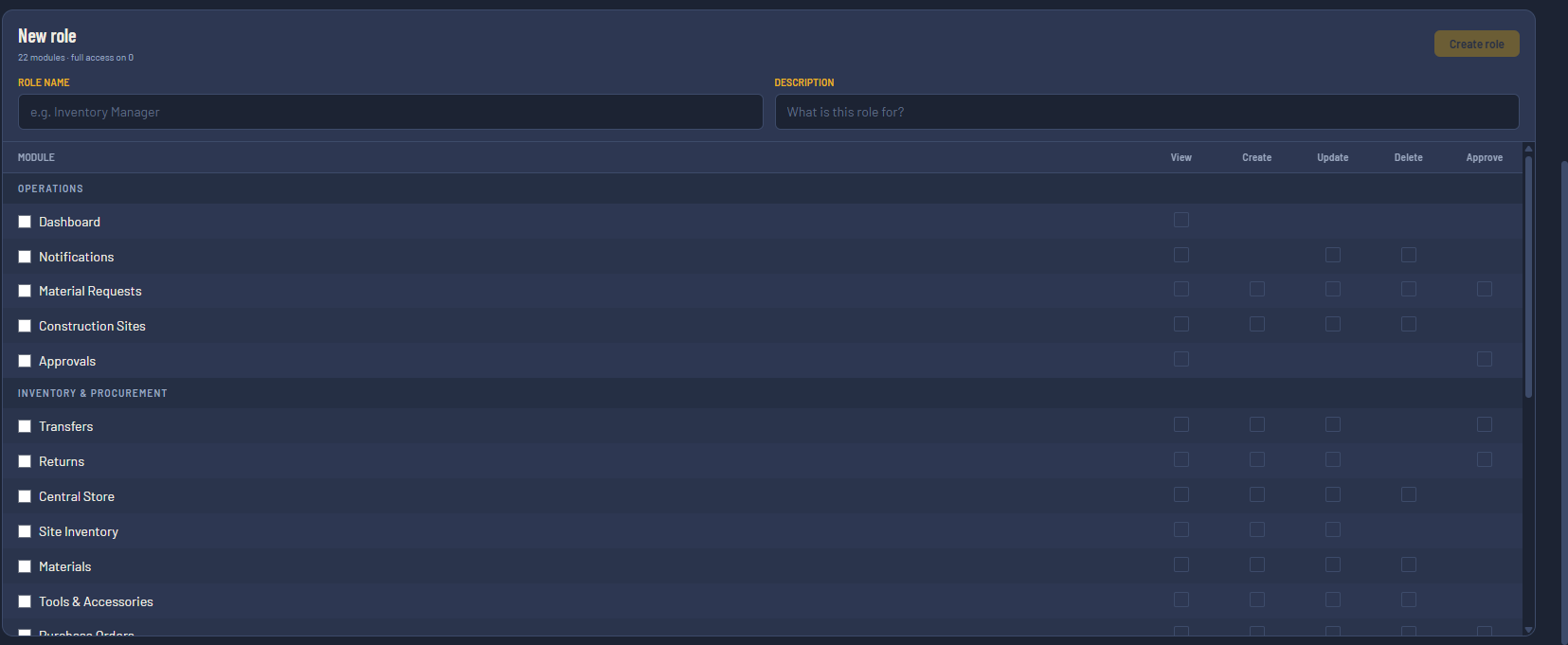
The Create Role function allows an administrator to add a new role by entering a role name and description. The permission table allows the administrator to control whether each role can View, Create, Update, Delete, or Approve information in modules such as Material Requests, Construction Sites, Inventory, Purchase Orders, Quotations, and Suppliers. The Save Changes button saves permission updates, while Delete Role removes the selected role.
- ⚡ Custom Role Definition: Define specialized organizational roles (e.g., Inventory Auditor, Site Accounts Clerk) with custom responsibilities
- ⚡ Granular 5-Action Matrix: Precision checkbox controls for View, Create, Update, Delete, and Approve permissions across all ERP modules
- ⚡ Categorized Operations: Separate control groups for Operations (Dashboard, Notifications, MRs, Sites, Approvals) and Inventory & Procurement
Company Profile & System-Wide Preferences Configuration
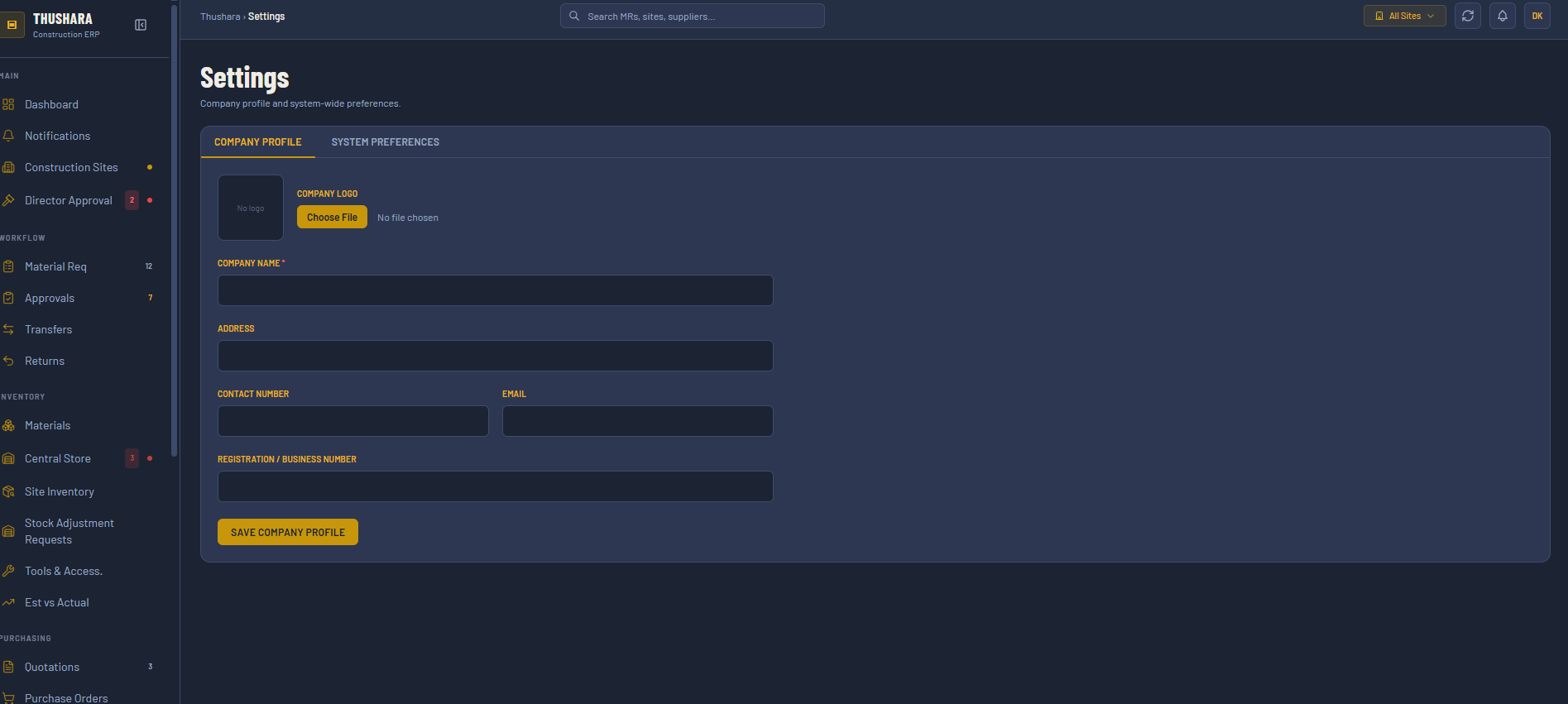
The Settings page is used to manage the company’s profile and general system preferences. Users can upload or change the company logo and enter details such as the company name, address, contact number, email, and registration or business number. After updating the information, they can click Save Company Profile to save the changes. These details help keep company information accurate and may be used throughout the system, such as on reports, invoices, and printed documents. The page also includes System Preferences for managing general system settings.
- ⚡ Corporate Branding Upload: Upload company logos that automatically display on printed Purchase Orders, Requisition slips, and PDF reports
- ⚡ Company Profile Data: Maintain official company name, registered business address, contact numbers, email, and business registration numbers
- ⚡ System Preferences Tab: Manage global application settings, regional currency formats, numbering conventions, and system notifications
Multi-Supplier Quotation Bidding & Lowest Bid Comparison
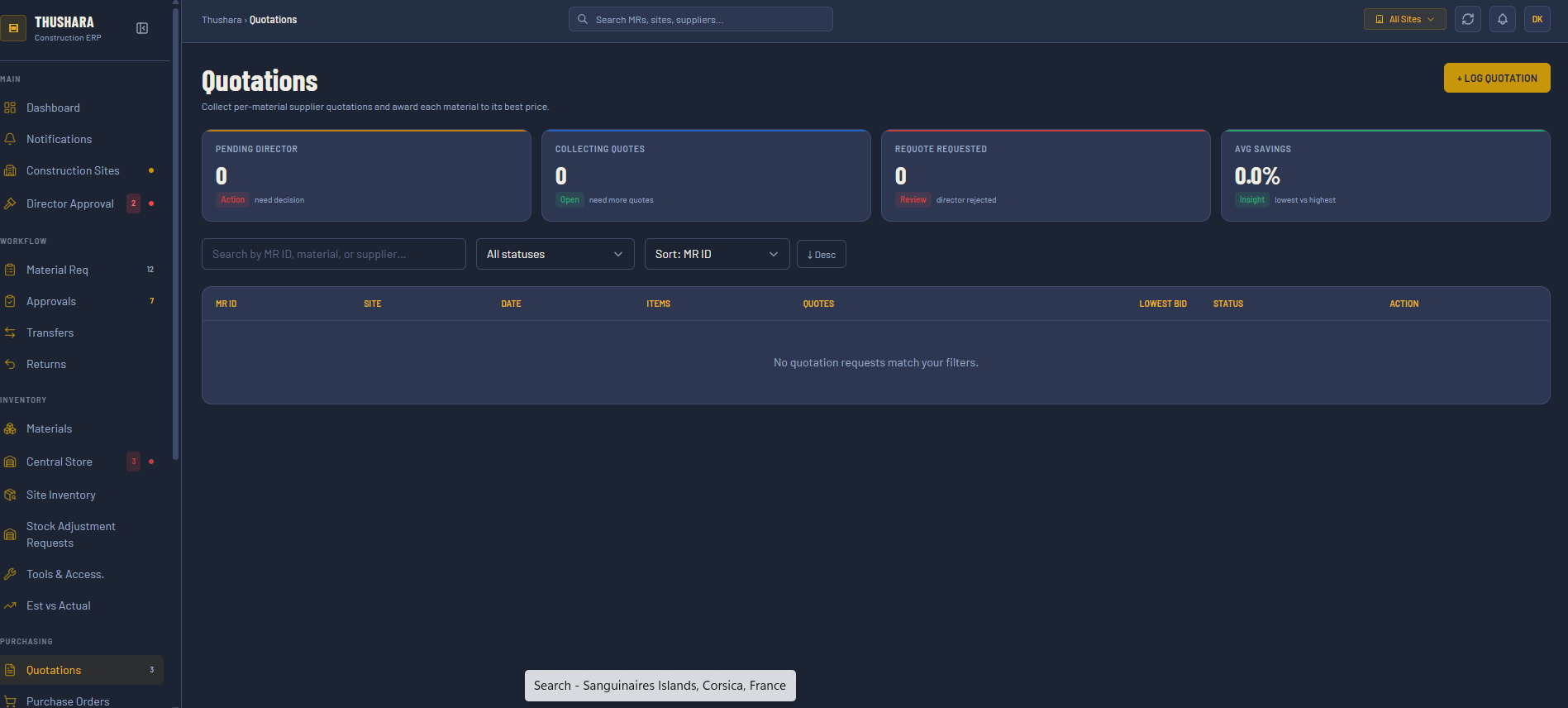
The Quotations page is used to collect, compare, and manage supplier quotations for materials required by construction sites. The dashboard displays the number of quotations pending Director approval, quotations still being collected, requotation requests, and average savings from price comparisons. Users can filter and sort quotation requests to find the relevant records. By clicking Log Quotation, users can select a Material Request and Supplier, enter the quotation date, delivery time, and payment terms, and record prices for the materials the supplier can provide. They can also upload a quotation document in PDF, image, or spreadsheet format and add optional notes. The system allows quotations from multiple suppliers to be compared, helping identify the lowest bid for each material. Once the quotations are ready, they can be submitted for Director review and a supplier can be selected based on price and suitability. This page helps the company compare prices, reduce purchasing costs, and support transparent procurement decisions.
- ⚡ Quotation Analytics KPIs: Real-time metrics for Pending Director decisions, Collecting Quotes status, Requote Requests, and Average Cost Savings
- ⚡ Vendor Bidding & Document Attachment: Attach PDF, image, or spreadsheet quotations from suppliers with payment terms and delivery lead times
- ⚡ Lowest-Bid Comparison Engine: Automated comparison identifies lowest bids per material item before submitting for Director award sign-off
Complete Construction ERP Suite
Designed with robust administrative, financial, and audit tools required for large-scale building enterprises in Sri Lanka.
Returns & Salvage Control
Log materials and tools returned from sites to Central Store, categorizing items into Good, Damaged, and Missing for accurate cost accounting.
Workforce & Staff Directory
Complete employee registry with unique employee codes, designations, assigned sites, salary records in LKR, and system access levels.
Departmental Hierarchy
Organize staff into Engineering, QS, Procurement, Store Management, and Accounts departments with structured management assignments.
Role-Based Access Permissions
Granular access controls across Director, Project Manager, Quantity Surveyor, Site Engineer, and Store Manager with strict module permissions.
Reports & Project Analytics
Comprehensive cost analysis, site budgets vs. actual spending, stock movements, supplier performance, and one-click PDF/Excel export.
Company Profile & Settings
Configure company profile, registration numbers, custom logos for invoices and MR reports, and general ERP system preferences.
Elevate Your Construction Operations Today
Eliminate material leakages, speed up project approvals, and maintain total control over job site inventory with Sri Lanka's #1 Construction Stock Management System.
Frequently Asked Questions
What is the Construction Company Stock Management System?
The Construction Company Stock Management System is software from Applantics (Pvt) Ltd (possystem.lk) for building contractors and construction companies in Sri Lanka. It covers central warehouse control, material requisitions, inter-site transfers, QS and Director approvals, BOQ estimate vs actual tracking, tools management and supplier purchase orders.
Who is the Construction Company Stock Management System designed for?
It is designed for building contractors and construction companies that want one system to manage sales, stock and day-to-day operations instead of spreadsheets and manual records.
How much does the Construction Company Stock Management System cost in Sri Lanka?
Pricing depends on the number of branches, users and modules you need, so we quote per business. Message us on WhatsApp (+94 77 271 8001) or email admin@possystem.lk for a free quotation.
Is local support and onboarding available for the Construction Company Stock Management System?
Yes. Applantics has a local support team in Sri Lanka that helps with setup, training and ongoing support, and the system supports multi-branch operations.