Introduction
Understanding how to use a POS system is essential for anyone working in retail, hospitality, or service industries. Whether you're using a cloud-based POS solution or a traditional on-premises setup, this guide will help you quickly and efficiently grasp the core functions and best practices for effective system operation.
What is a POS System?
Before learning how to use the POS system operations, let's clarify the POS system's meaning. A Point of Sale system is where customers pay for products or services.
Modern types of POS systems include:
The best POS system combines transaction processing, inventory tracking, and business reporting in one platform. It's not just a cash register—it's the nerve center of business operations, whether you're using a retail POS system, restaurant POS system, or pharmacy POS system.
Getting Started: Your First Login
Understanding Your Equipment
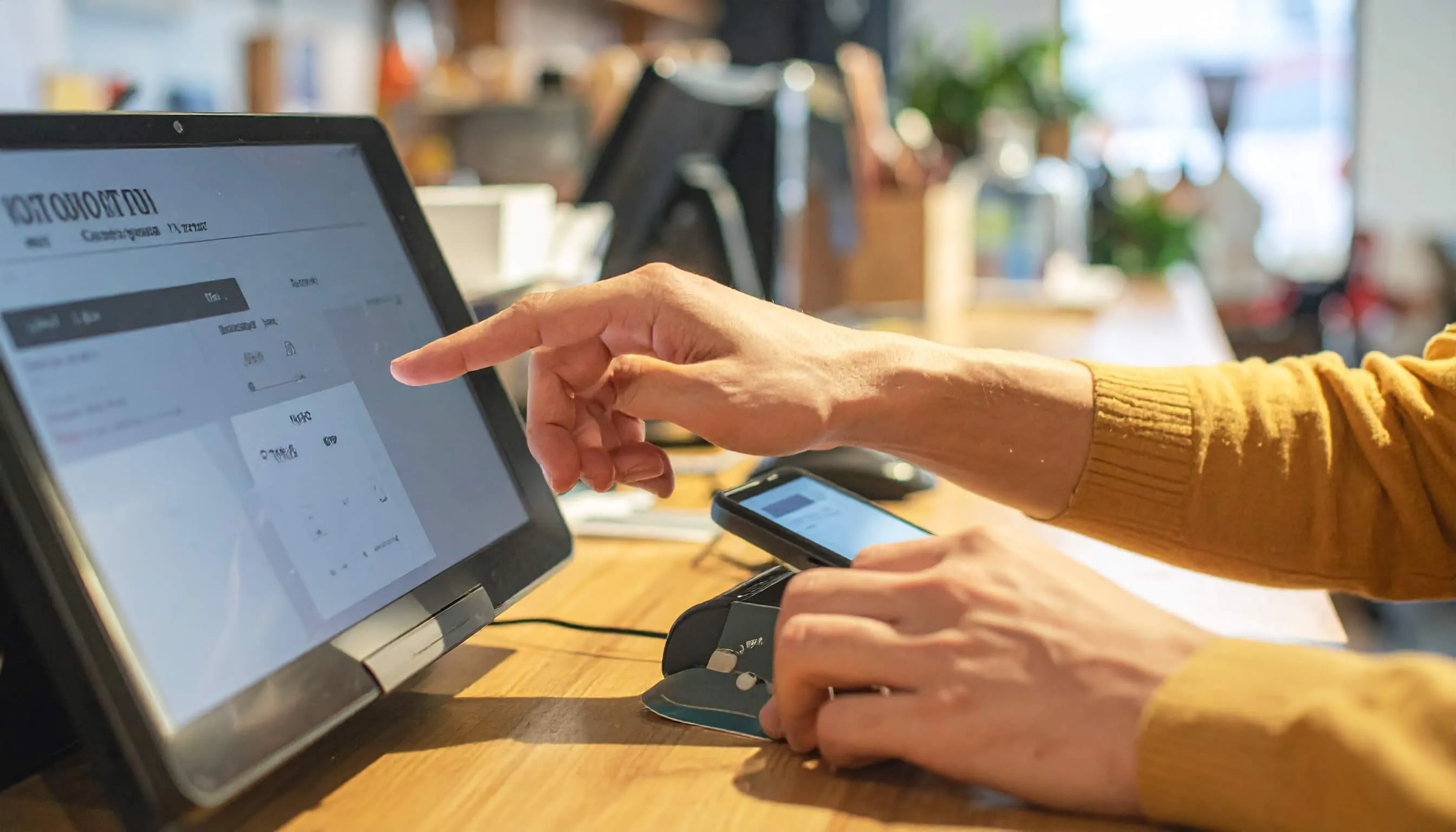
Your POS system typically includes:
- Touchscreen computer or tablet
- Receipt printer (thermal or impact)
- Barcode scanner (handheld or fixed)
- Cash drawer (opens automatically)
- Card payment terminal
- POS system customer display (optional, faces the customer)
Need help choosing the right hardware? Visit our hardware pricing page or contact our team for a customized quote.
Logging In
Every POS cashier system requires a secure login:
- Power on the system and wait for startup (30-60 seconds for cloud-based POS systems)
- Enter your credentials (username and password or PIN)
- Select your station if multiple terminals exist
- Count starting cash and enter the opening balance
- Verify system status and check the date/time
Your login tracks all your transactions, creating accountability. Never share your credentials. You're responsible for everything done under your account.
Processing Basic Sales: The Core Function
Starting a New Transaction
Most systems automatically start when you scan the first item, but you can manually click "New Sale" if needed. The POS system UI displays a blank transaction screen ready for products.
Adding Products to the Sale
The best POS system for retail offers multiple methods:
Barcode Scanning (Primary Method):
- Point scanner at product barcode (4-6 inches away)
- Pull the trigger or let it auto-scan
- Listen for the confirmation beep
- Product appears with price
Troubleshooting: If the barcode won't scan, try angling it differently, clean the barcode, or manually enter the SKU.
Manual Product Search:
- Click the search box
- Type product name or SKU
- Select from results
- Press Enter to add
Product Buttons:
Common in restaurant POS systems, simply tap the product image or name to add it instantly. This touch-friendly approach works perfectly on Android POS system tablets.
Adjusting Quantities and Prices
Changing Quantity:
- Click the item and modify the quantity field
- Or scan the same barcode multiple times
- Use +/- buttons if available
Removing Items:
- Click the item to remove
- Press Delete or click the Remove button
- Confirm if prompted
Price Changes:
- Requires manager approval in most systems
- Select the item and click "Price Override"
- Enter the new price and reason
- Manager enters authorization code
Applying Discounts
Percentage Discounts:
- Select item or entire transaction
- Click the "Discount" button
- Enter percentage (10 for 10% off)
- System recalculates automatically
Coupon Codes:
- Click "Apply Coupon"
- Scan the coupon barcode or enter the code manually
- System validates and applies the discount
Loyalty Programs:
- Enter customer phone number or scan loyalty card
- System retrieves profile and available rewards
- The customer chooses to redeem points or save them
Large discounts typically require manager PIN approval.
Adding Customer Information
Modern online POS systems track customer data:
- Click "Add Customer"
- Enter phone number or email
- System finds existing profile or creates a new one
- Attach to the current transaction
- Loyalty benefits apply automatically
Processing Payments: Multiple Methods
Cash Payments
Standard Process:
- Announce the total clearly to the customer
- Receive and count cash in front of the customer
- Enter the amount received in the system
- The system calculates the change due
- Count the change back to the customer
- Cash drawer opens automatically
- Place bills and coins in an appropriate slot
- Close the drawer securely
- Receipt prints automatically
Cash Handling Tips:
- Keep drawer organized (bills facing same direction)
- Never share your drawer with others
- Check large bills for counterfeits
- Close drawer between transactions
Card Payments
Processing Cards:
- Click "Credit/Debit Card" payment option
- System sends the amount to the card terminal
- Customer inserts chip card (leave in until approved)
- Or the customer taps for contactless payment
- Customer enters PIN if required
- Wait for approval (2-5 seconds)
- Terminal displays approval or decline
- Customer removes card when prompted
- Receipt prints automatically
Handling Declined Cards: Stay professional and never speculate why. Simply say: "This card was declined. Do you have another payment method?"
Mobile Payments
Online POS systems support Apple Pay, Google Pay, and similar services:
- Select a mobile payment option
- Customer unlocks phone and opens payment app
- Customer holds phone near contactless reader
- Transaction processes instantly
- Confirmation appears on the phone and the terminal
- Receipt prints
Gift Cards
Accepting Gift Cards:
- Select gift card payment method
- Scan or enter card number
- System checks balance
- Apply available amount
- Customer pays remaining balance with another method if needed
Split Payments
Many customers use multiple payment methods:
- Click "Split Payment"
- Process first payment (e.g., $50 gift card)
- System shows remaining balance
- Process second payment (e.g., credit card for balance)
- Complete transaction
Returns and Exchanges
Processing Returns
With Receipt:
- Click "Return" or "Refund" button
- Scan receipt barcode to find transaction
- Select items being returned
- Choose return reason from dropdown
- Manager approval if required
- Refund to original payment method
- Receipt prints showing refund
- Items return to inventory automatically
Without Receipt:
- Usually requires manager override
- Refund often given as store credit
- Follow your store's specific policy
Exchanges
- Process return first
- Credit applies to customer account
- Start new transaction with exchanged items
- Apply credit to new purchase
- Customer pays difference or receives refund
Industry-Specific Features
Restaurant POS Systems
Restaurant POS system Sri Lanka locations and worldwide use special features:
Table Management:
- View floor plan on POS system dashboard
- Tap empty table to open
- Add menu items by category
- Note modifications ("no onions," "well done")
- Send order to kitchen display
- Fire courses at appropriate times
Splitting Checks:
- By item: Assign items to different checks
- Even split: Divide total equally
- By seat: Generate checks per seat number
Pharmacy POS Systems
Pharmacy POS system operations include:
Prescription Processing:
- Enter patient and doctor information
- Add prescribed medications
- System checks drug interactions
- Process insurance claim
- Print medication labels and instructions
- Pharmacist signature required for controlled substances
Expiration Management:
- System alerts for expiring medications
- Blocks sales of expired products
- Generates rotation reports
End of Shift Procedures
Closing Your Cash Drawer
Reconciliation Process:
- Click "Close Drawer" or "End Shift"
- System generates expected cash amount
- Count all cash in drawer carefully
- Enter counted amount
- System shows variance (over/short)
- Investigate significant discrepancies
- Prepare deposit (remove excess cash)
- Print closing report
- Manager reviews and both sign
Keep starting cash in drawer for next shift. Store excess in deposit bag in safe.
Logging Out
- Click "Log Out" button
- Confirm end of session
- Verify you're completely logged out
- Never leave terminal logged in unattended
Troubleshooting Common Issues
Hardware Problems
Barcode Scanner Not Working:
- Check USB connection
- Try different USB port
- Clean scanner window
- Manually enter SKU as workaround
Receipt Printer Issues:
- Check paper supply (most common)
- Load paper correctly
- Clear paper jams
- Clean print head
Cash Drawer Won't Open:
- Check connection to printer
- Use manual key if available
- Never force open
- Call for service
Software Issues
System Running Slowly:
- Close unused programs
- Restart system
- Check internet connection (cloud-based POS systems need connectivity)
- Contact IT support
Transaction Won't Complete:
- Verify all required fields filled
- Check payment amount matches total
- Look for error messages
- Use "Hold" function and start fresh
Tips for Success
Speed and Efficiency
- Keep workspace organized
- Learn keyboard shortcuts
- Memorize common product codes
- Practice during slow periods
- Stay focused during rush times
Customer Service
- Greet every customer warmly
- Make eye contact and smile
- Explain charges clearly
- Thank customers sincerely
- Handle complaints professionally
Security Best Practices
Protecting Data:
- Never share login credentials
- Log out when leaving station
- Protect customer information
- Report suspicious activity
Fraud Prevention:
- Count cash carefully and openly
- Check large bills for counterfeits
- Verify card signatures when required
- Watch for common scams (quick change artists, distractions)
When to Call Management:
- Large discounts requiring approval
- Suspicious transactions
- Customer disputes you can't resolve
- System errors you can't fix
- Cash drawer significantly over/short
Continuous Learning
The best POS system evolves with new features. Stay updated by:
- Attending training sessions
- Asking questions about unfamiliar functions
- Reading system updates
- Learning from experienced coworkers
- Practicing new features
Cloud Based POS System systems and online POS systems update automatically, so new features may appear regularly. Take time to explore and understand them.
Conclusion
Mastering the use of a Point of Sale (POS) system requires both practice and patience. Whether you're managing a retail, restaurant, pharmacy, or any other POS cashier system, the key principles remain the same: accuracy, efficiency, and customer focus.
In Sri Lanka, the POS system and available features vary among providers such as POSSystem.lk Pvt Ltd and others — you can explore our platform to see how these features come together in practice. However, regardless of whether you see a cloud-based, mobile, or traditional desktop POS system, the core operations remain consistent across platforms.
Begin with the basics: logging in, processing simple sales, and handling cash transactions. As your confidence grows, move on to advanced features such as processing returns, managing split payments, and generating sales reports.
Remember, every expert once started as a beginner; focus on accuracy first, and speed will naturally improve with experience.
Your POS system is more than just a cash register. It is a powerful business management tool. Learning to use it effectively will help you deliver excellent customer service, streamline operations, and make your work both easier and more rewarding.
With the insights from this guide, you're fully equipped to handle any transaction confidently and efficiently.